IBM Maximo Application Suite · Manage · Workflow · Model Context Protocol
Start a Maximo workflow from the Assistant: a workflow process published as an MCP tool
A workflow process is already a packaged piece of business logic: who reviews, who approves, what happens next. Manage 9.2 can publish an active workflow process as a tool on its MCP server, so an agent can start it on a record. No script is needed. This guide publishes one, calls it, and shows what lands in the database and in the inbox. It is the companion of the automation script tool guide: same mechanism, a different kind of tool.
- What makes a workflow process a tool, and what the tool looks like to an MCP client.
- The one input every workflow tool has, and how to obtain it.
- A complete example on a work order, with the result checked in the database.
- What happens in the Assistant: the record lookup, the approval prompt, and the answer.
- How it differs from a script tool, and what to decide before publishing a workflow to an agent.
Reading time: about 10 minutes.
The idea in one picture
What makes a workflow a tool
Two things, both in Manage:
| What | What it gives the tool |
|---|---|
| An active workflow process | The behaviour. Its description becomes the tool's description, the text the language model reads when it decides whether to use the tool. Its object decides which kind of record the tool accepts. |
| An MCP tool record for the process | The switch that publishes it, with a title and the hints an MCP client sees: read-only or not, changes data or not. |
Manage then exposes the process as a route and a tool named after it, in lower case with a wf_ prefix.
Process TEST_WF_1 becomes wf_test_wf_1.
Compared with a script tool there is nothing to write and nothing to declare. Every workflow tool has the same single input:
| Input | Meaning |
|---|---|
href (required) | The reference of the record to start the workflow on. For a work order process it is a work order reference such as /os/mxapiwodetail/_QkVERk9SRC8xMjcz, the same reference the REST API returns for that record. |
The call starts the workflow on that record as the calling user, exactly as "Route Workflow" does in the application. If the process names an object structure and a query template, the tool returns the record in that shape; otherwise it returns an empty object and the proof is in the record's workflow history.
The example
The demo database ships a small process on work orders, TEST_WF_1: Start, one task assigned to the
person who started the workflow, Stop. The task has two outcomes; the negative one closes the work order. It is a
good first example because starting it changes very little: one workflow instance and one task.
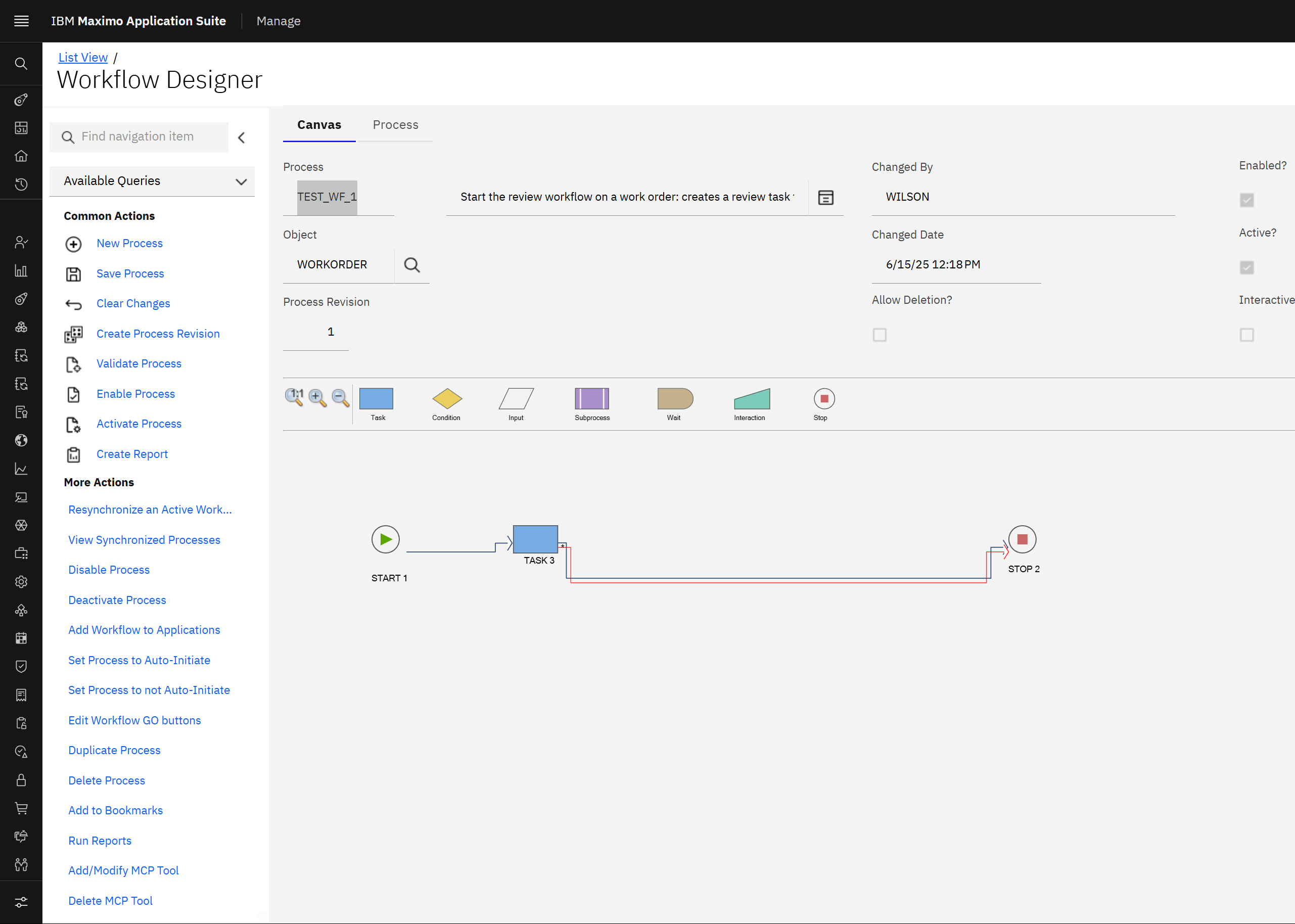
Workflow Designer has the same two actions as Automation Scripts, Add/Modify MCP Tool and Delete MCP Tool, at the end of the More Actions list. I applied the change as a database script instead, so that it can be reviewed and repeated.
Two changes publish it. First the description, because the shipped text ("TEST_WF_1 a simple wf for testing") tells a language model nothing. Then the tool record. As a database script for Db2:
update wfprocess
   set description = 'Start the review workflow on a work order: creates a review task for the person who starts it.'
 where processname = 'TEST_WF_1';

insert into mcptool (name, type, mcpreadonly, title, queryapiasresp, userdefined, mcptoolid, mcpdml)
values ('TEST_WF_1', 'WFPROCESS', 0, 'Start work order review', 0, 1, mcptoolseq.nextval, 1);
The tool is marked as not read-only and as changing data, which is what it does. The description column of a workflow process holds 100 characters, so the sentence has to be short.
A database script goes around the running server. Restart the Manage server pods so the workflow cache registers the route, then the MCP pod so it reads the new tool list.
The tool, as an MCP client sees it
{
  "name": "wf_test_wf_1",
  "title": "Start work order review",
  "description": "Start the review workflow on a work order: creates a review task for the person who starts it.",
  "annotations": { "readOnlyHint": false, "destructiveHint": true, "toolType": "WFPROCESS", "custom": true },
  "inputSchema": { "type": "object", "required": ["href"],
                   "properties": { "href": { "type": "string", "description": "WORKORDER reference uri" } } }
}
Calling it
I picked a work order that was waiting on approval and had no workflow on it: 1273 at site BEDFORD, "HVAC overheating". Its reference came from the REST API. Then one tool call:
tool     : wf_test_wf_1
arguments: { "href": "/os/mxapiwodetail/_QkVERk9SRC8xMjcz" }
answer   : {}                      (no error, about 7 seconds)
The database shows what happened:
select i.wfid, i.processname, i.active, i.originator, a.assigncode, a.assignstatus, a.description
  from wfinstance i left join wfassignment a on a.wfid = i.wfid
 where i.ownertable = 'WORKORDER' and i.ownerid = 2205;

WFID  PROCESSNAME  ACTIVE  ORIGINATOR  ASSIGNCODE  ASSIGNSTATUS  DESCRIPTION
106   TEST_WF_1    1       MXINTADM    MXINTADM    ACTIVE        TASK 3
One active workflow instance on the work order, and one active task assigned to the caller. The caller here is the integration user behind the API key of my MCP client; from the Assistant it is the signed-in user.
Make the tool answer with the record
An empty answer is correct but unhelpful, and a language model reads it as "nothing found" (you will see that below). A workflow process can name an object structure and a query template; the tool then returns the record in that shape after starting the workflow. The demo database has a default work order template, so one more statement is enough:
update wfprocess set intobjectname = 'MXAPIWODETAIL', templatename = 'DFLTWOVIEW'
 where processname = 'TEST_WF_1';
After the restarts, the same call on the next work order returns it:
tool     : wf_test_wf_1
arguments: { "href": "/os/mxapiwodetail/_QkVERk9SRC8xMjcx" }
answer   : {"wonum":"1271","siteid":"BEDFORD","description":"HVAC overheating","status":"WAPPR",
            "status_description":"Waiting on approval","assetnum":"11200","location":"BR200",
            "failurecode":"HVAC","wopriority":3, ...}
What the Assistant's agent needs
As with script tools, the agent only keeps the tool types on its allow list. On Maximo Application Suite 9.2.7 that
list holds the AI configuration tools, so a tool of type WFPROCESS is dropped. On my lab system I added the
type to the agent's allow list; after its restart the agent's log listed the tool among the ones it kept:
Filtered tools | original=19 | filtered=7 | tools=[..., 'alm_mcp__script_runsqlquery', 'alm_mcp__wf_test_wf_1',
'internal_mcp__textual_data_analyzer']The agent deployment belongs to the suite's operator, I found no documented option for the allow list, and the operator can restore its own value. Use it to learn; for a real environment ask IBM Support how custom tools are meant to be enabled for the Assistant in your version. The tool itself is on the MCP server for any MCP client regardless.
From the Assistant
I typed: "Start the work order review on work order 1272 at site BEDFORD". Three things happened, and each one is worth knowing before you publish a workflow to an agent.
The agent found the record by itself. A person gives a work order number; the tool wants a reference. The agent planned three steps and used its query tool first ("Find work order 1272 at site BEDFORD") to get it.
It asked for approval. The tool record says the tool changes data, so the agent stopped and asked before calling it. This comes from the "changes data" flag of the MCP tool record, not from the workflow.
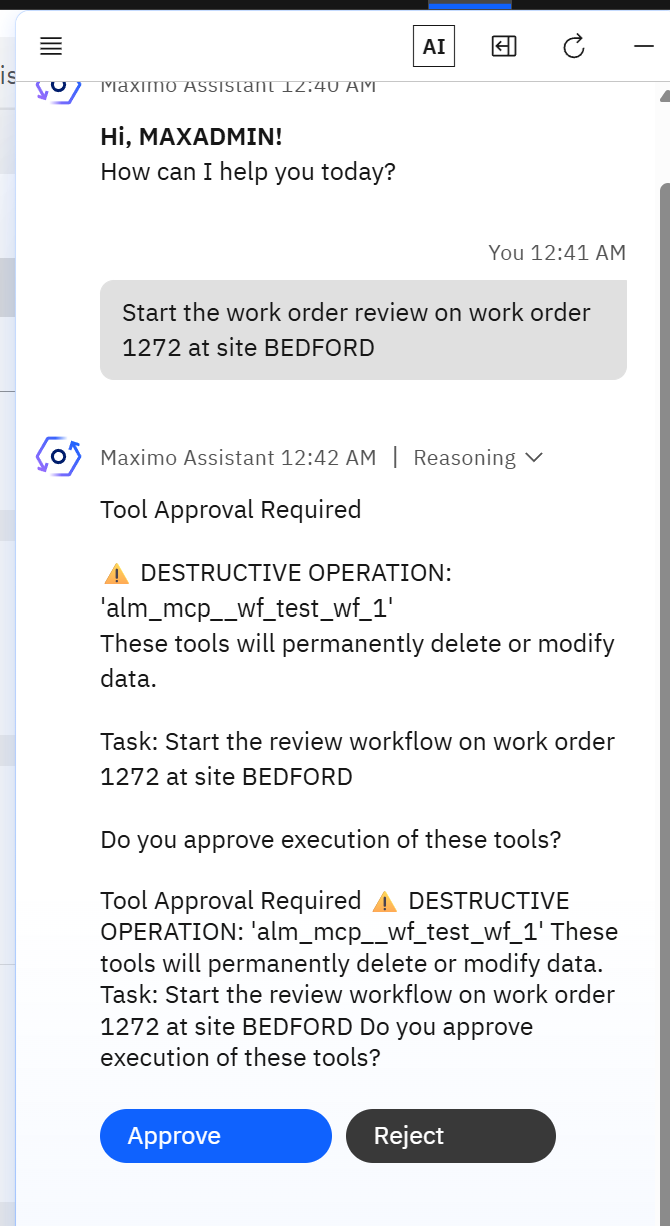
It ran the tool. After Approve, the reasoning steps read: Approval received, Start work order review (the tool's title), Preparing answer. The database showed a new active instance of the process on work order 1272, started by MAXADMIN, and the review task appeared in my inbox on the Start Center.
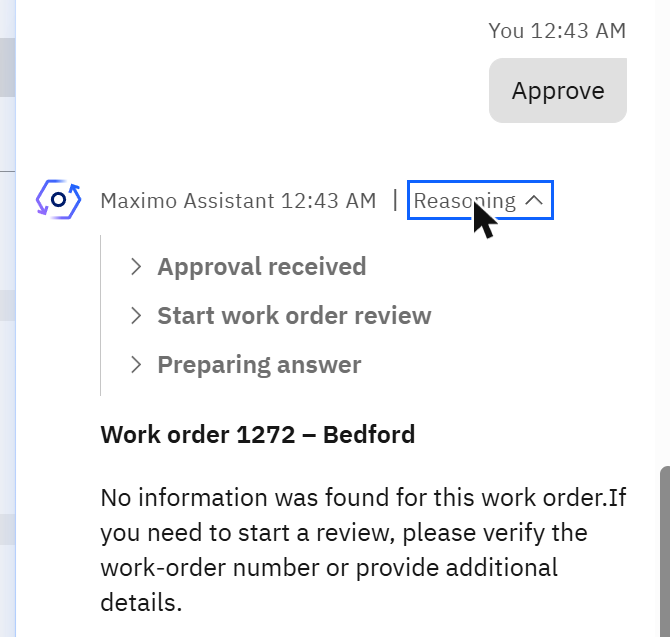
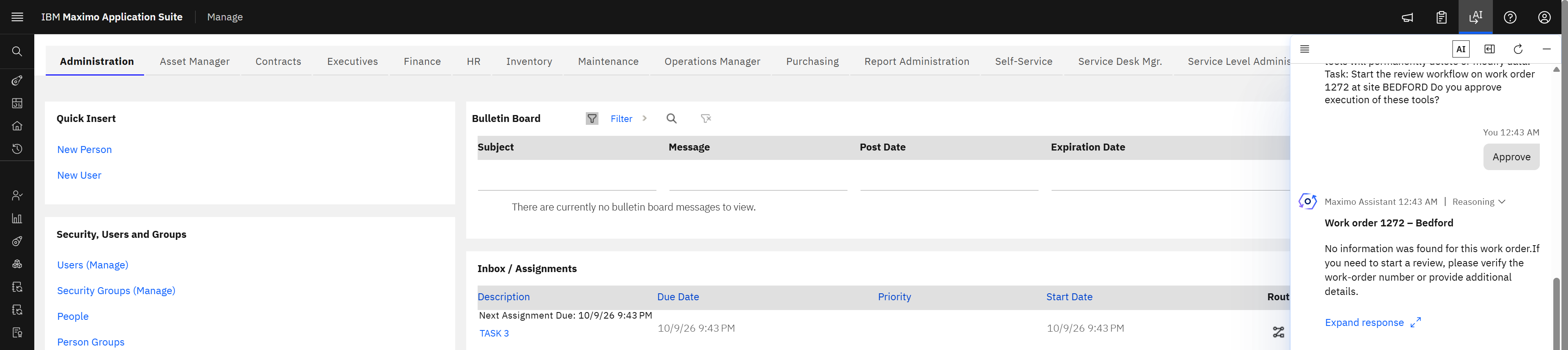
The closing sentence in that screen is the lesson of the previous section. The tool had returned an empty object, and the model turned "no content" into "no information was found", although the workflow had started. Give the process a response template before you let people use it from the chat.
Script tool or workflow tool?
| Automation script tool | Workflow tool | |
|---|---|---|
| What you build | A script, its variables, a tool record | A tool record on an existing active process |
| Tool name | script_<name> | wf_<process> |
| Inputs | Whatever variables you declare | Always one: href, the record |
| Answer | Whatever the script puts in responseBody | Empty, or the record through a query template |
| Best for | Reads, calculations, anything custom | Starting a governed process with assignments and approvals |
| Security | What the script checks | The caller's rights on the record and the process |
Before you publish a workflow to an agent
- Starting a workflow is an action. It creates assignments, can send notifications and can change status. Publish processes whose first step is safe to trigger, and say plainly in the description what starting it does.
- It cannot be undone by the tool. A started workflow is stopped from Workflow Administration.
- The record must not already be in that process. Starting the same process twice on one record fails, and the agent will report the error.
- The agent needs the record reference. A person says "work order 1272"; the tool wants an
href. Here the agent found the record first with its query tool. Test that chain on your own objects before relying on it. - Mark it honestly. Flag the tool as changing data. The approval prompt you get in return is worth having.
Checklist
| Step | Check |
|---|---|
| The process is enabled and active | It can be routed from the application. |
| Its description says what starting it does, in 100 characters | The tool's description reads well on its own. |
| An MCP tool record of type WFPROCESS exists for it | wf_<process> appears in the MCP server's tool list. |
| A direct call with a record reference succeeds | The record has an active workflow instance and assignment. |
| The agent is allowed to use the tool type | The agent's log lists the tool after filtering. |
Built and tested on IBM Maximo Application Suite 9.2.7 with Manage 9.2.4 and AI Service 9.2 on Red Hat OpenShift, Db2 12.1, demo data, October 2026. Tool names, timings and log lines are those of one demo cluster. How Manage publishes tools is described here as observed on that system; the IBM documentation prevails.