IBM Maximo Application Suite · Manage · Maximo Mobile · Application Configuration
Maximo Application Framework, piece by piece: Graphite, role-based apps, bundles, Maximo Mobile and where React fits
Open any modern Maximo screen and you are told five names at once: Maximo Application Framework, Graphite, role-based applications, Maximo Mobile, React. They sound like five products. They are one thing seen from five sides. This guide puts the pieces on one map, shows where each one lives on a running system, and then follows a single small customization from the first click to the moment every user sees it. Every screenshot was taken on a live Maximo Application Suite 9.2 system.
- What Maximo Application Framework, Graphite, Carbon, React, role-based applications and Maximo Mobile each are, and how they connect.
- What an application is made of: pages, states, data sources, controllers, dialogs and components.
- What a bundle is, what is inside one, and where the system keeps it.
- How to use the Application Configuration tool: Navigator, Properties, Code editor and Canvas.
- The life of a customization: edit, save, preview, publish, revision, delivery to browsers and devices.
- The life of a running application: what it calls when it starts, and the hooks where your code can step in.
- Which way to customize in which situation, and the traps that cost people days.
Reading time: about 25 minutes. Doing the exercise: one hour.
Part 1The names, untangled
Start with one sentence that holds them all. A role-based application, such as Technician, is described in an XML file; the Maximo Application Framework turns that description into a React web application drawn with IBM's Carbon components; the result is packed into a bundle and stored in Manage; a browser runs it directly, and the Maximo Mobile app on a phone downloads the same bundle and runs it offline. Graphite is the engineering name of the framework, and it is the word you meet in addresses, pod names and package names.
| Name | What it is | Where you see it |
|---|---|---|
| Maximo Application Framework (MAF) | The framework and tools for building and configuring the modern Maximo applications. | IBM documentation, release notes, the name of the practice. |
| Graphite | The same framework, under its engineering name. | The address /maximo/oslc/graphite/<app>, the container image graphite-configuration, the documentation topic "Basic Graphite concepts". |
| Role-based application | An application designed around what one kind of person does, not around one database table. | Technician, Inspections, Service Requests, Inventory Counting, Work Orders. |
| app.xml | The description of one application: its pages, data and behaviour, in a tag language. | The Code editor of the Application Configuration tool. |
| React | The open-source library that draws the screen and redraws it when data changes. | Inside the bundle. You do not write React; the framework generates it. |
| Carbon | IBM's open-source design system: buttons, lists, colours, spacing. | The look of every screen in this guide. |
| Bundle | One zip file holding a built application and its own source. | The table MAFAPPDATA in the Manage database. |
| Maximo Mobile | The app from the app stores. A container that downloads bundles and their data and runs them without a network. | The technician's phone or tablet. |
| Application Configuration | The browser tool where you change an application and publish the change. | Its own address in the suite, appconfig.<your MAS domain>. |
You describe, the framework builds. An application is data (an XML description and a few JavaScript files), not a program you compile by hand. That is why the same Technician app can be changed in a browser tool, runs on a desktop and on a phone, and survives an upgrade better than screen customizations used to.
Part 2Role-based applications: what is installed
The quickest way to see what "role-based application" means on your own system is the first page of the Application Configuration tool. On the system used here the list has 44 entries.
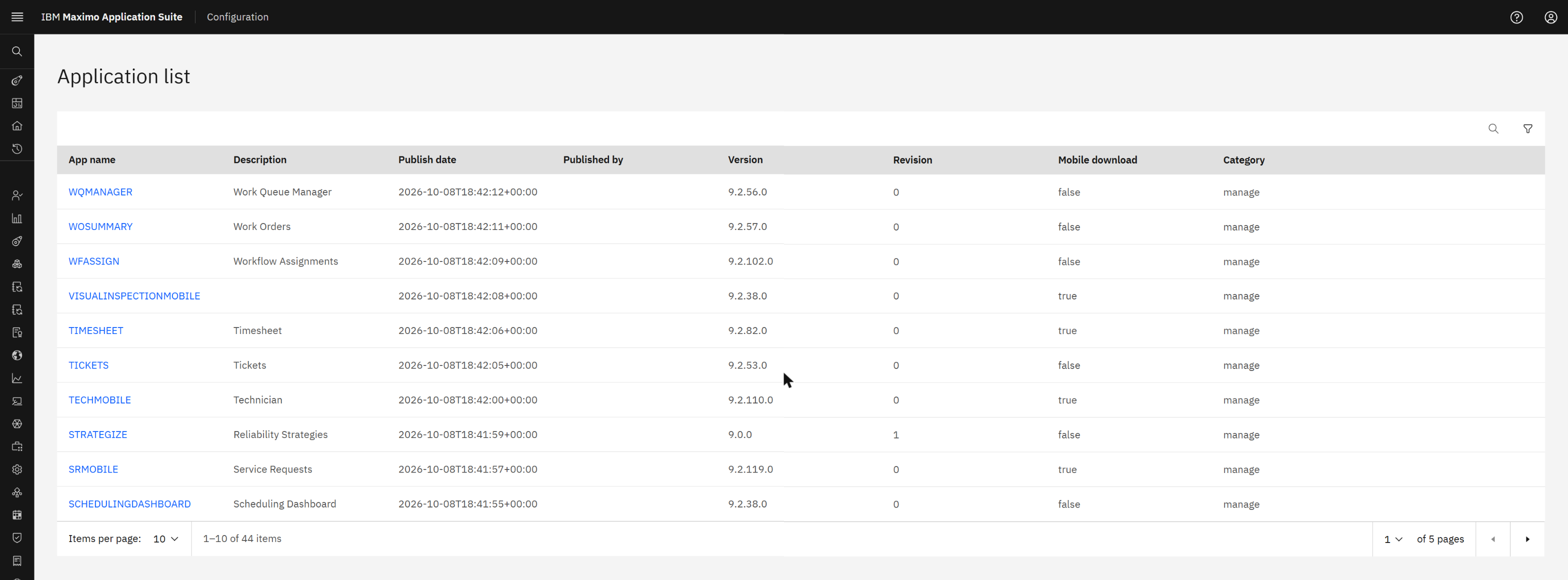
The columns say more than they seem to:
| Column | Meaning |
|---|---|
| App name | The application's ID. It is also the last part of its address in a browser. |
| Version | What IBM shipped. It changes when the product is updated. |
| Revision | How many times you have published a change on top of that version. Zero means untouched. |
| Publish date, Published by | When the current bundle was stored. Published by was empty on this system, even after a publish done by hand. |
| Mobile download | true means the Maximo Mobile app offers it. false means browser only. |
| Category | Which part of the suite owns it. Here every row says manage. |
Sixteen of the 44 are mobile. The rest are the desktop side of the same framework: dashboards, administration pages, and the shell that hosts them.
| Mobile download = true | For whom |
|---|---|
| TECHMOBILE (Technician) | The person doing the work order. |
| INSPECTION, VISUALINSPECTIONMOBILE | The inspector with a form or a camera. |
| SRMOBILE (Service Requests), INCMOBILE (Incident Reporter) | Anyone reporting a problem. |
| ICMOBILE, IRMOBILE, ITMOBILE, MATERIALREQUEST | The storeroom: counting, receiving, issues and transfers, requesting material. |
| ASSETMOBILE, LOCATIONMOBILE | Whoever maintains the asset and location registers in the field. |
| CREWMOBILE, TIMESHEET | Crew leads and labour reporting. |
| PTWREQMOBILE (Permit to Work), DASHBOARDMOBILE | Safety and a mobile dashboard. |
| NAVIGATOR | Not a role: the home screen of Maximo Mobile that lists the other apps. |
| Mobile download = false (examples) | What it is |
|---|---|
| WOSUMMARY (Work Orders), TICKETS, WFASSIGN (Workflow Assignments) | Desktop work lists. |
| OPDASHBOARD, PLANNINGDASHBOARD, SCHEDULINGDASHBOARD, DISPATCHINGDASHBOARD | Role dashboards. |
| MASUSER, MASGROUP, APIKEY, MOBADMIN | Administration pages: users, security groups, API keys, mobile configuration. |
| MANAGE-SHELL | The frame around all of them: header, navigation, sign-out. |
Any of them opens in a browser at
https://<manage host>/maximo/oslc/graphite/<app name in lower case>/index.html.
Part 3Anatomy of an application
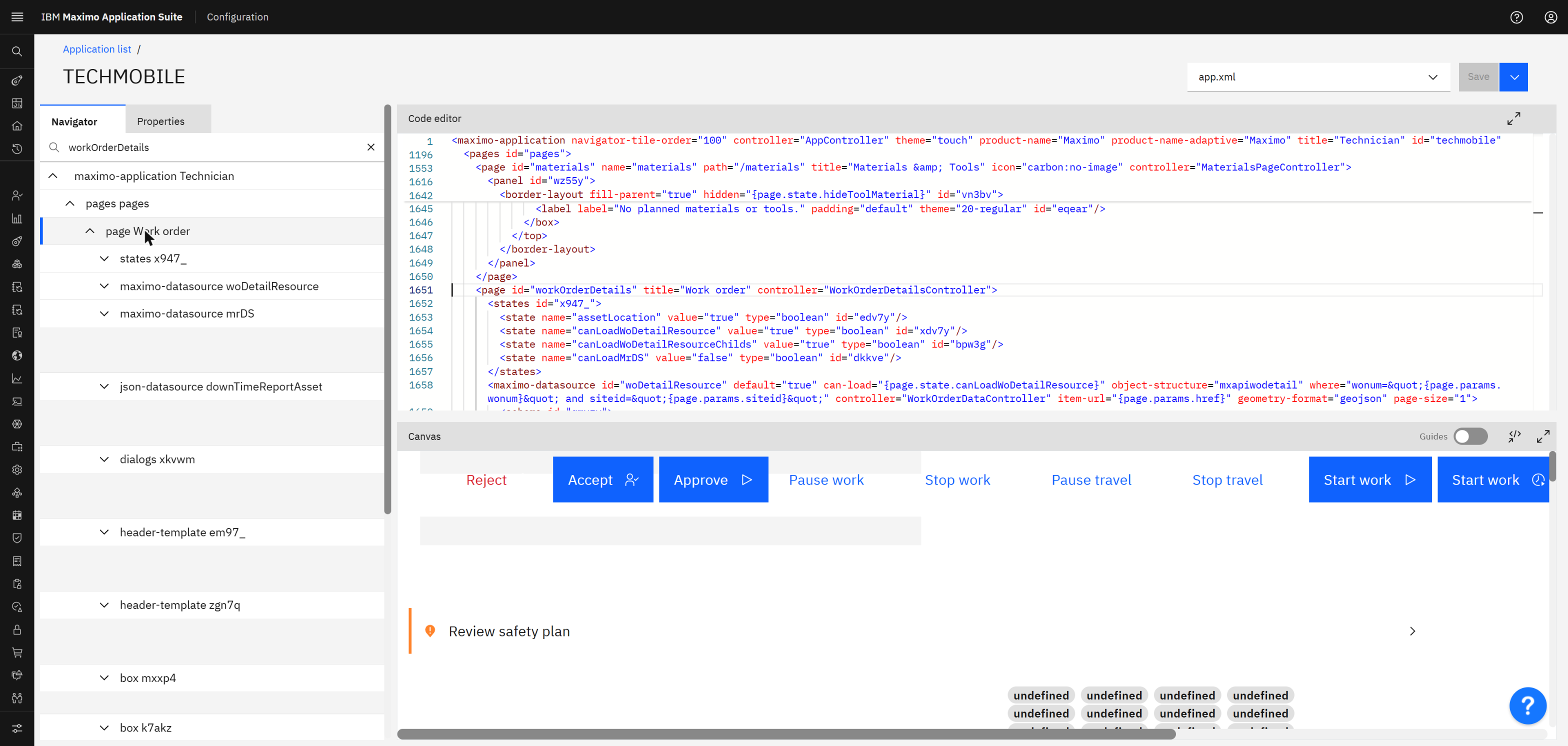
Open Technician in the tool, search the Navigator for one page, and the structure of every Graphite application is on the screen at once.
| Building block | Tag | What it is |
|---|---|---|
| Application | maximo-application | The root. It names the app, its version and its application controller. |
| Page | page | One screen with its own address. IBM's guide describes it as the container that coordinates the components, data sources and logic of one view. |
| State | states, state | A named value the screen reacts to: a flag, a selection, a counter. A state belongs to a page or to the whole application. |
| Data source | maximo-datasource, json-datasource | The link between data and the components that show it. It loads, caches, filters, pages and saves, and the screen redraws when it changes. |
| Schema | schema, attribute | The list of fields the data source asks Maximo for. A field that is not in the schema does not exist for the app. |
| Controller | the attribute controller="..." | A JavaScript class with the page's behaviour: what happens on load, on a click, on a change. |
| Dialogs | dialogs with dialog, lookup, lookup-with-filter, sliding-drawer | Everything that opens on top of a page. They must be declared inside a dialogs container. |
| Components | button, field, label, data-list, card-group, box and many more | What the user sees and touches. |
| Binding | curly braces: {page.state.x} | An expression in place of a fixed value. When the thing it names changes, the component follows. |
Three lines from the screenshot show the pieces working together. They are the start of the Work order page:
XML<page id="workOrderDetails" title="Work order" controller="WorkOrderDetailsController">
<states id="x947_">
<state name="canLoadWoDetailResource" value="true" type="boolean" id="xdv7y"/>
</states>
<maximo-datasource id="woDetailResource" default="true"
can-load="{page.state.canLoadWoDetailResource}"
object-structure="mxapiwodetail"
where="wonum="{page.params.wonum}" and siteid="{page.params.siteid}""
controller="WorkOrderDataController" item-url="{page.params.href}" page-size="1">
Read it slowly. The page has an ID, a title and a controller class. It owns a state called
canLoadWoDetailResource. Its data source reads the object structure mxapiwodetail, which is
the same integration object the REST API uses, and it loads only when that state is true. The work order number and
site come from the page's address. So one screen is three things tied together by names: a state, a data source
and a controller.
A maximo-datasource points at an object structure. Security on that object structure, the
fields it exposes, its saved queries and its relationships are all defined in Manage, in the places an integration
developer already works. A Graphite app is, in the end, a well-dressed client of the Maximo REST API.
IBM documents these ideas in
Basic Graphite concepts
and the topics linked from it: data sources, the page component, dialog components, applying configurations, the
mobile master schema and the preloaded database. That page also shows a detail worth knowing early: the
required attribute works both on an input component and on a schema attribute.
XML<text-input value="{page.state.name}" required="true"
    invalid="{page.state.nameInvalid}" invalid-text="{page.state.nameInvalidText}"/>
Part 4Where React and Carbon come in
Nobody writes React by hand for a Maximo app, yet every Maximo app is a React app. The build step reads
app.xml and writes one React component for each page, dialog, drawer and list. The proof is in any
built workspace. This is the top of a generated file from a Permit to Work app on the same system:
JavaScript// Generated File - Do not edit
import React, { Component, useEffect, useState } from 'react';
import { observer, Provider, inject } from 'mobx-react';
import { Datasource, JSONDataAdapter, Application, Page, Dialog } from '@maximo/maximo-js-api';
import { Button, Box, Label, Field, SmartInput, Tabs, Tab, Tag, BorderLayout } from '@maximo/react-components';
import AppController from './AppController';
import PagePtwList from './PagePtwList';
import PagePtwDetails from './PagePtwDetails';
import PTWDetailsController from './PTWDetailsController';
import DialogChgStatusDialog from './DialogChgStatusDialog';
import SlidingDrawerAssetLookup from './SlidingDrawerAssetLookup';
(The import lines are grouped here for reading; the generated file has one per line.) The names tell the story:
| In app.xml | Generated React file |
|---|---|
<page id="ptwDetails"> | PagePtwDetails.jsx |
<dialog id="chgStatusDialog"> | DialogChgStatusDialog.jsx |
<sliding-drawer id="assetLookup"> | SlidingDrawerAssetLookup.jsx |
<card-group id="ptwHazards_cg"> | CardGroupPtwHazards_cg.jsx and ...Item.jsx |
controller="PTWDetailsController" | Your own PTWDetailsController.js, copied in unchanged |
| Package | Role |
|---|---|
@maximo/react-components | The component library. Each tag you can write in app.xml is one of these React components, built on Carbon. |
@maximo/maximo-js-api | The engine without a face: Application, Page, Datasource, Dialog, the adapters that talk to Maximo or to the device database. |
@maximo/app-processor, @maximo/maxdev-cli | The build tools that turn XML into the React files. |
react, react-dom | React itself (18.3 in the 9.2 toolchain). |
mobx, mobx-react | The reactivity: when a state or a data source changes, MobX tells React exactly which components to redraw. This is what makes a binding "live". |
Carbon is the open-source IBM design system underneath the components: github.com/carbon-design-system/carbon. It matters to an administrator for one practical reason. A design system is software with versions, and its security policy states which major versions receive fixes (at the time of writing, 11.x and 10.x) and how to report a vulnerability privately. When a security scanner flags a front-end package inside a Maximo bundle, that policy and IBM's own fix packs are where the answer comes from. You do not patch Carbon inside a bundle yourself.
The generated files say "Do not edit" for a reason: the next build overwrites them. Your code goes in controllers and in the customization file, and your screen changes go in app.xml. Knowing that React is underneath is for reading stack traces and understanding behaviour, not for editing the output.
Part 5The bundle
A bundle is what the build produces and what the system stores: one zip per application. This is the inside of the Technician bundle taken from this system, 10.6 MB:
Listingtechmobile bundle (145 entries)
  index.html          the page a browser loads
  assets/             104 files: the built JavaScript and styles, split into chunks
  js/                 2 files
  i18n/               29 files: the labels, one per language
  data/               4 files
  build.json          version 9.2.110, application ID, title, and the routes
  manifest.json       name, icon and "standalone" display, as for any installable web app
  loader.css, favicon.svg
  app-source.zip      the source this bundle was built from
The last line is the one people miss. Every bundle carries its own source. Unzip
app-source.zip and you have a complete project:
Listingapp-source.zip (368 entries)
  package.json        dependencies and build scripts
  src/app.xml         the application description
  src/*Controller.js  about 37 controllers: WorkOrderDetailsController, SchedulePageController, ...
  src/assets/
  public/i18n/        29 label files
  ibm-config/         63 files: IBM's original, kept for comparison
| Question | Answer |
|---|---|
| Where is the bundle stored? | In the Manage database, table MAFAPPDATA, one row per application with the zip in a binary column. |
| How does a browser get it? | Manage unpacks it and serves it at /maximo/oslc/graphite/<app>/. |
| How does a phone get it? | Maximo Mobile asks the suite's mobile service for its packages and downloads those marked for mobile. |
| What does "Download app src" in the tool give me? | That same source project, as a file. |
| What does a publish do? | Builds a new bundle from the edited source, writes it to MAFAPPDATA, and raises the revision. |
Part 6The Application Configuration tool
Click an application in the list and the editor opens. It takes half a minute, because the tool is unpacking that application's source into its own workspace.
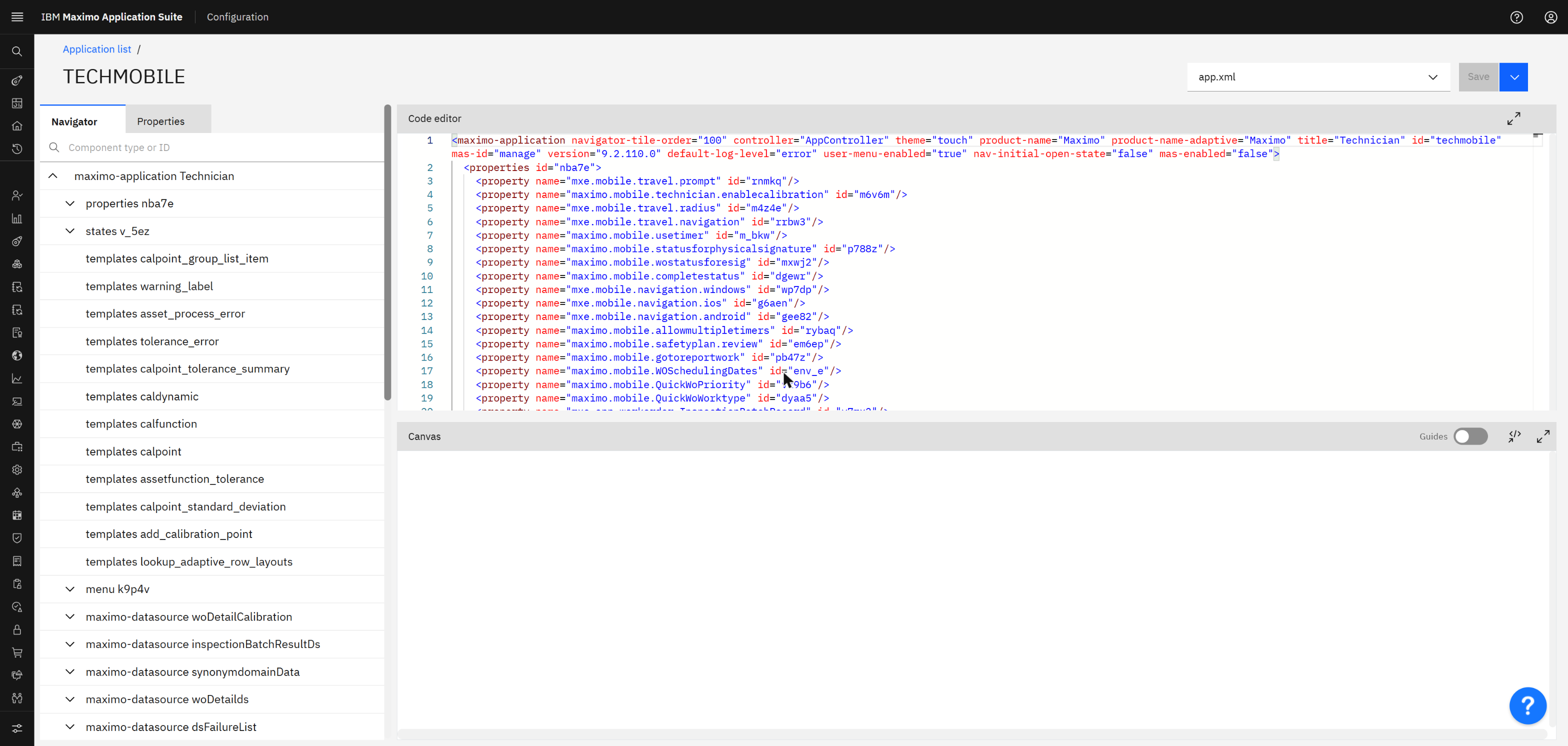
| Area | What it is for |
|---|---|
| Navigator | The application as a tree. The search box takes a component type or an ID, which is the fastest way to find anything in a file of several thousand lines. |
| Properties | Every attribute of the selected component as a form. Changing a value here rewrites the XML for you. |
| Code editor | The XML itself. Selecting something in the Navigator jumps to its line. |
| Canvas | A drawing of the selected page, recompiled after each change. It uses no real data, so labels bound to data show as "undefined". |
| File selector | Which file of the project the Code editor shows. It opens on app.xml. |
The arrow next to Save opens the actions that move a change through its life:
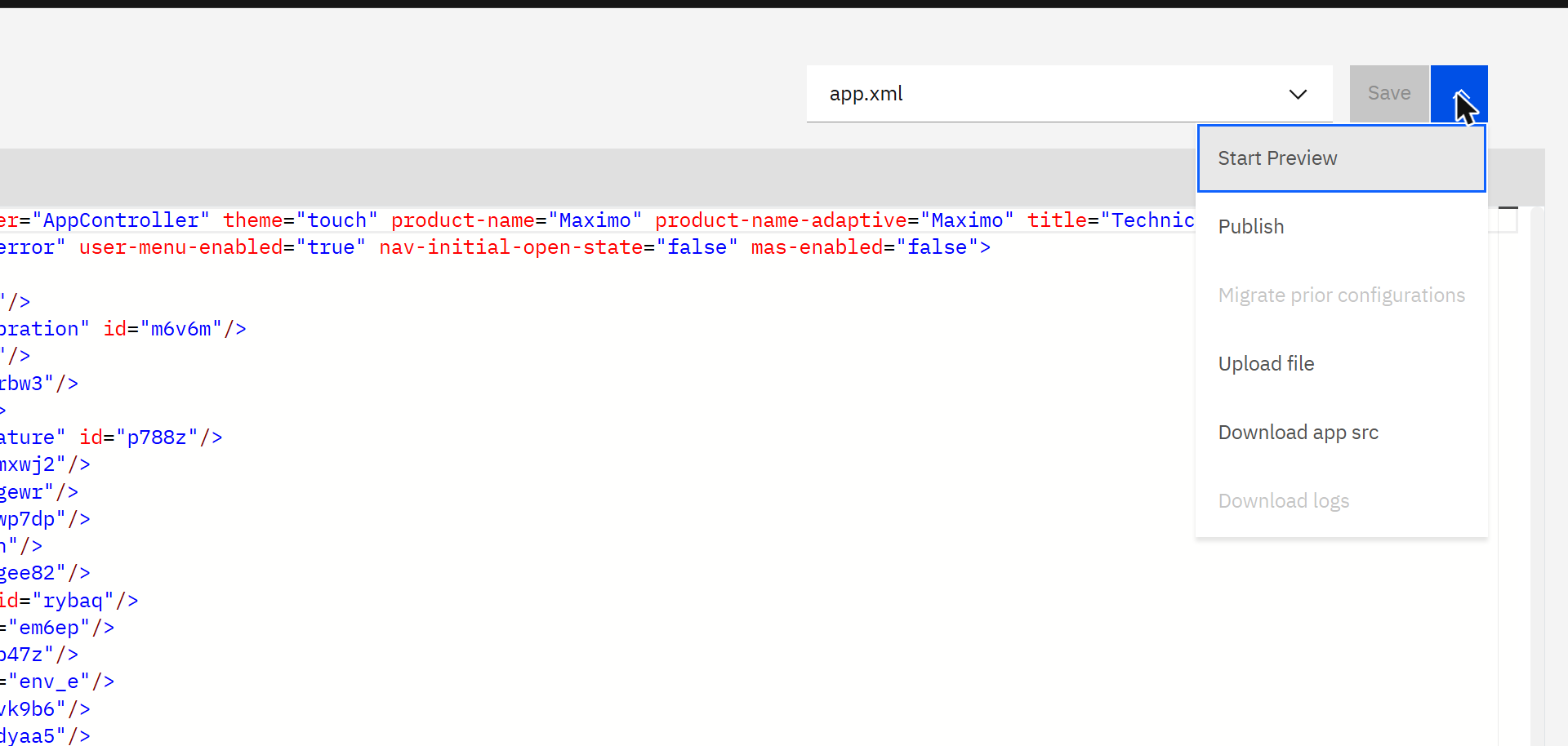
| Action | What it does |
|---|---|
| Start Preview | Builds the application as it is now in the tool, for you alone. When the build ends the entry becomes Open Preview. |
| Publish | Builds it and stores it as the application everyone gets. |
| Migrate prior configurations | After a product update, carries the changes you made on the previous version onto the new one. Greyed out here, because there is nothing to migrate. |
| Upload file | Puts a file from your computer into the project, for example an image or a controller edited elsewhere. |
| Download app src | Gives you the whole source project. |
| Download logs | The build log of the last preview or publish. Available once something has been built. |
The question mark at the top right of the tool links to the reference material you will need once you go beyond changing a label: Component Documentation, Developer Documentation and JS API Documentation.
Part 7Life of a customization, with an exercise
The exercise changes one word in Technician and follows it through all six steps. The change is deliberately tiny, so that everything you see is the process and not the change.
Before: use the application
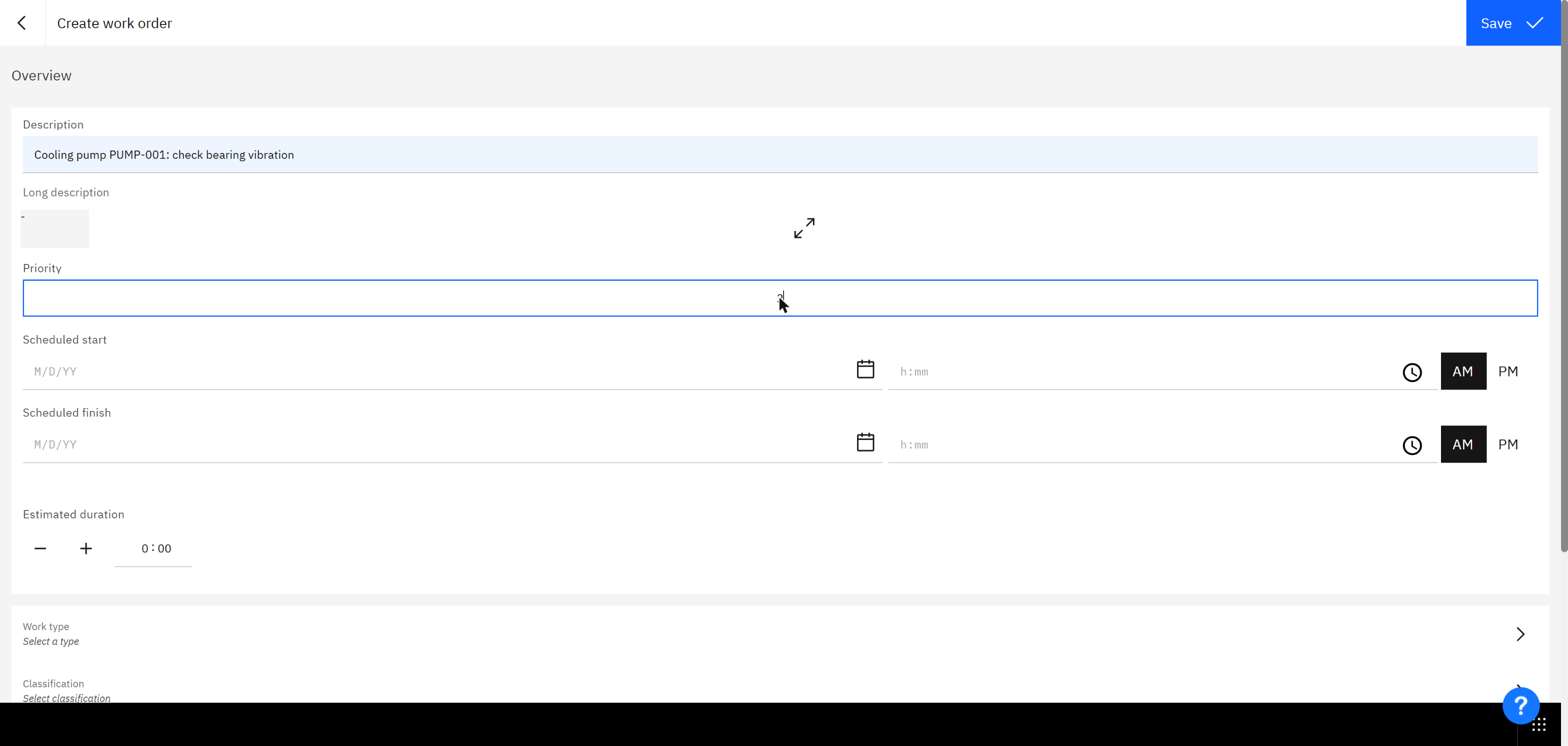
Open Technician. A user needs something to look at, so create a work order with the + button. This is the
page woCreateEdit: a form whose fields are components bound to a data source.
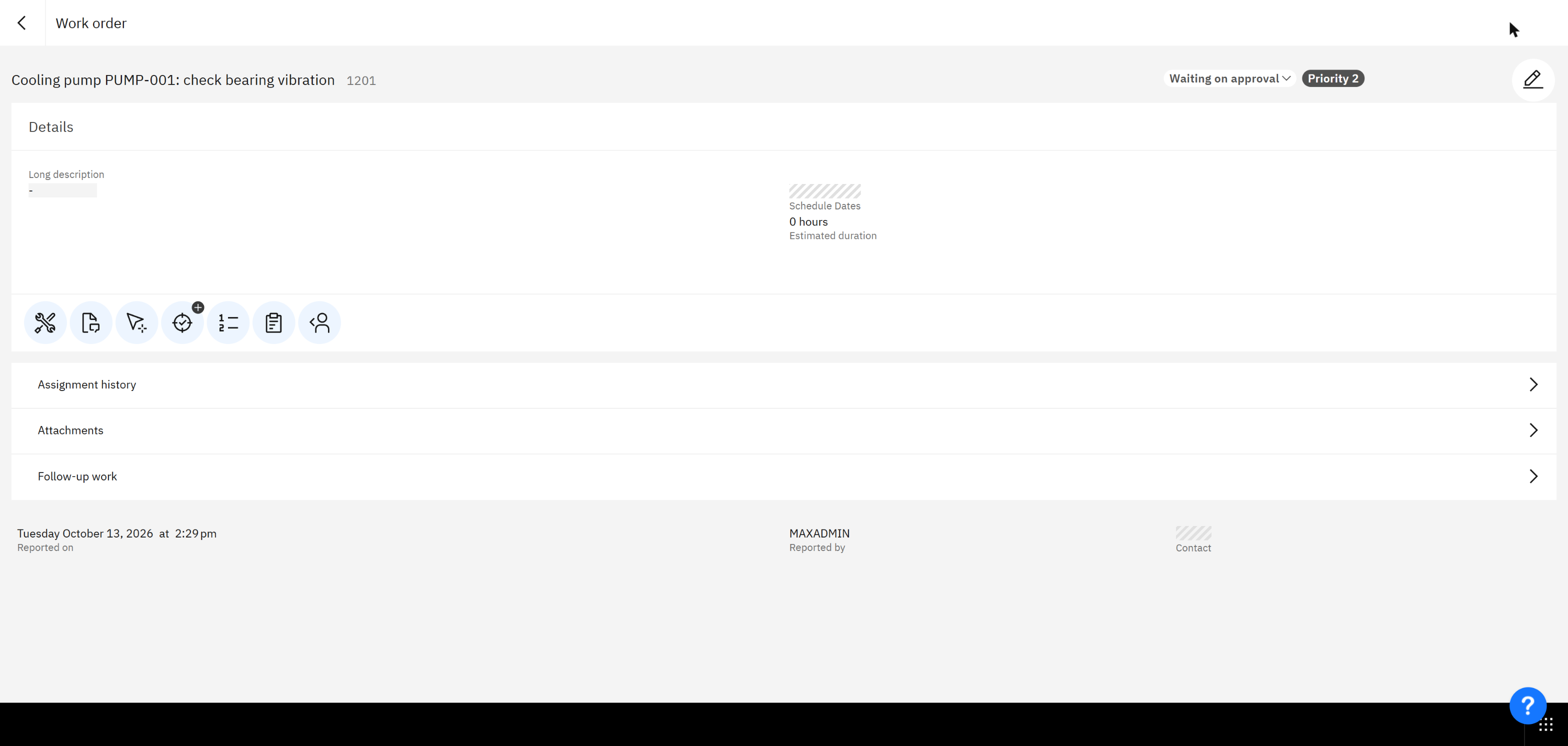
After Save, the app goes to the work order's detail page, and the list Work created by me now has one record.

The first time Technician opened here, every list said "No results found". The lists are saved queries about your work, and the administrator account had no labor record and no assignments. Before you debug the app, check that the person signed in is someone the query can find work for.
Step 1: edit
In the Application Configuration tool, open TECHMOBILE. Type workOrderDetails in the Navigator search
and click page Work order. Switch to the Properties tab. Every attribute of the page is there. Change
title from Work order to Work order details and press Tab.
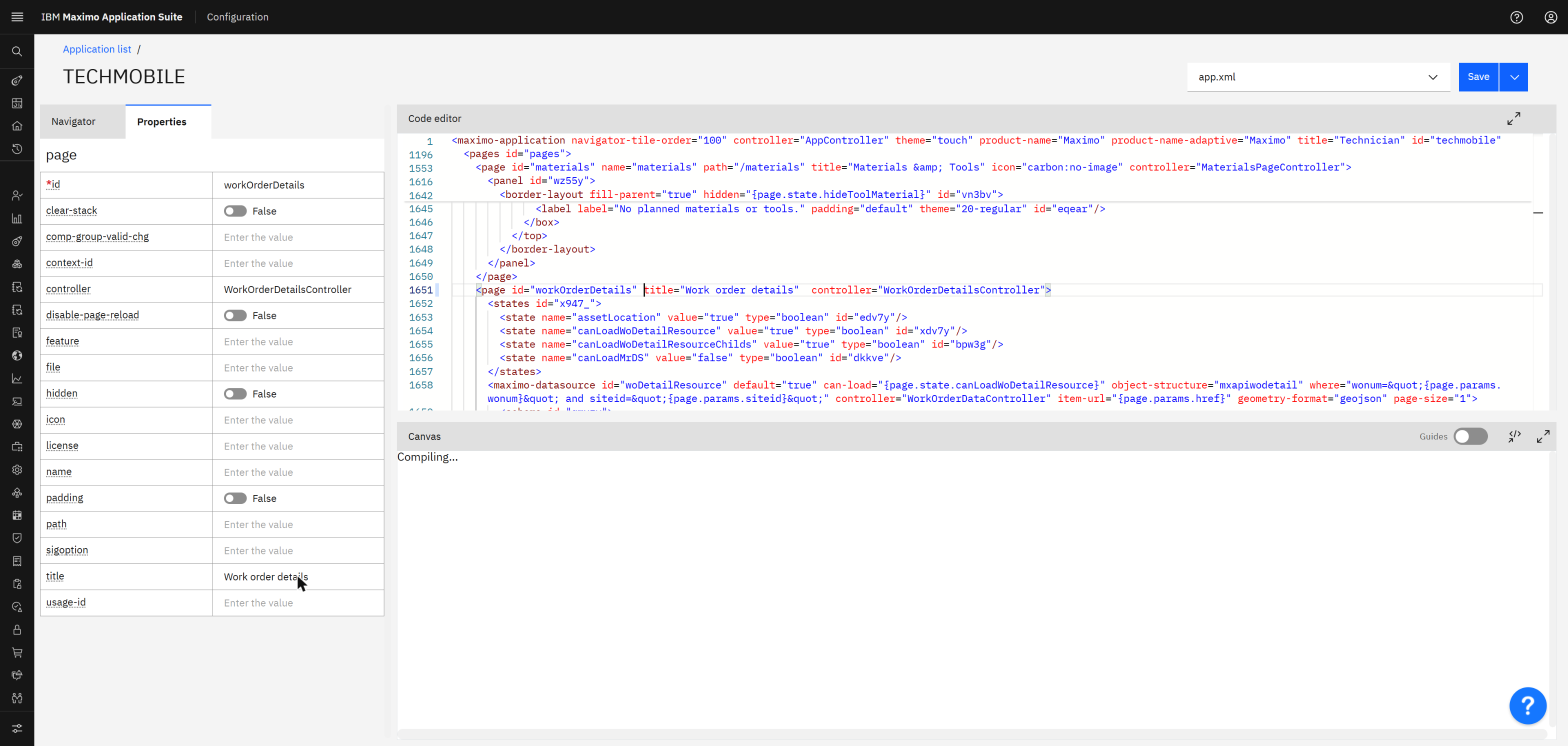
Look at the other properties while you are there, because they are the vocabulary of every page:
controller names the JavaScript class, sigoption ties the page to a Maximo security option,
hidden can take a binding, and license and feature let a page appear only
when the right product is installed.
Step 2: save
Click Save. The tool answers "File was updated" and, if a preview was running, starts rebuilding it.
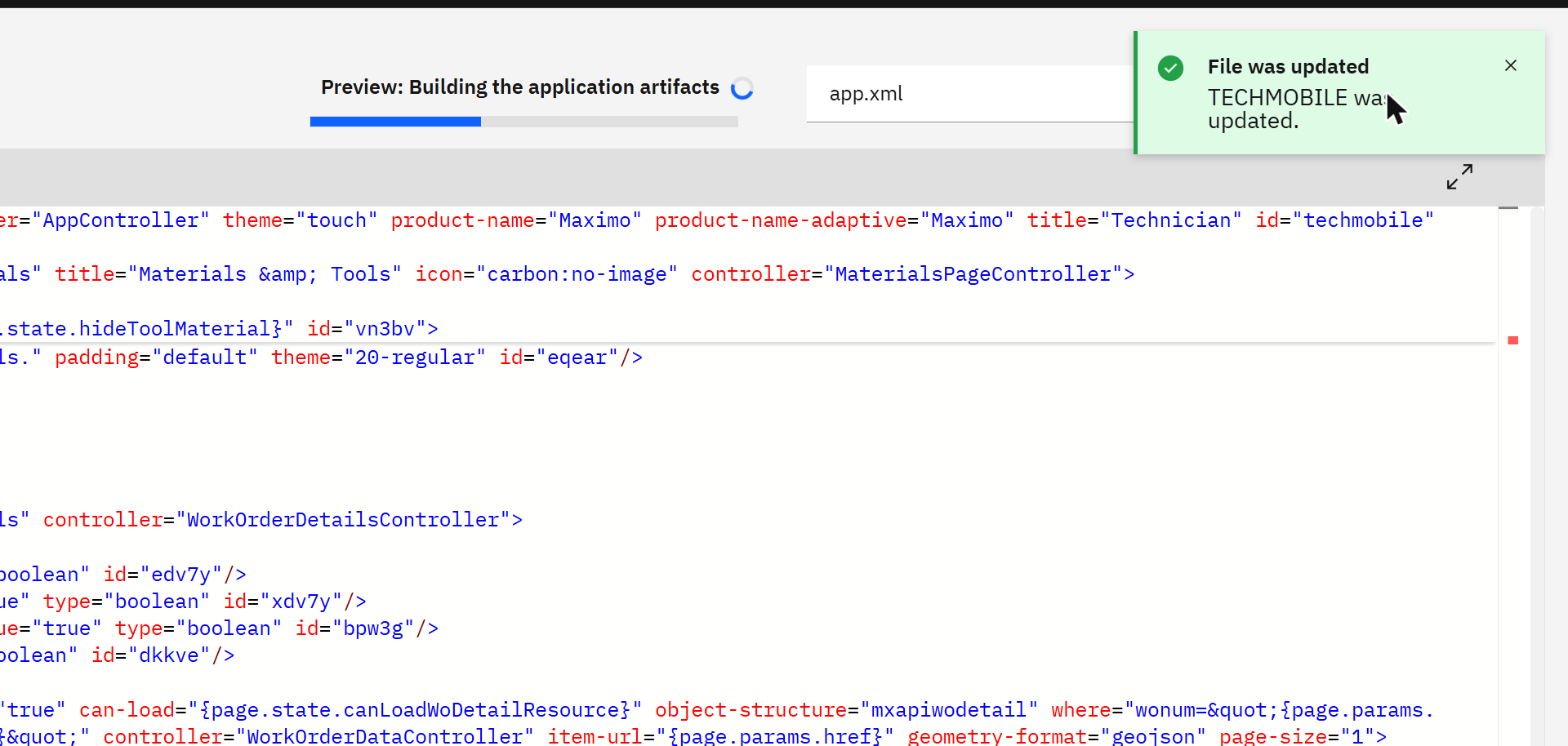
At this point nothing has changed for any user. Close the browser and come back tomorrow: the edit is still in the tool, and still private.
Step 3: preview
Open the actions menu and choose Start Preview. The status line reads "Preview: Building the application
artifacts". When it finishes, the same menu offers Open Preview, which opens the application in a new tab
under the tool's own address, /preview/. It is the real application with the real data of the
signed-in user. Open the work order again:
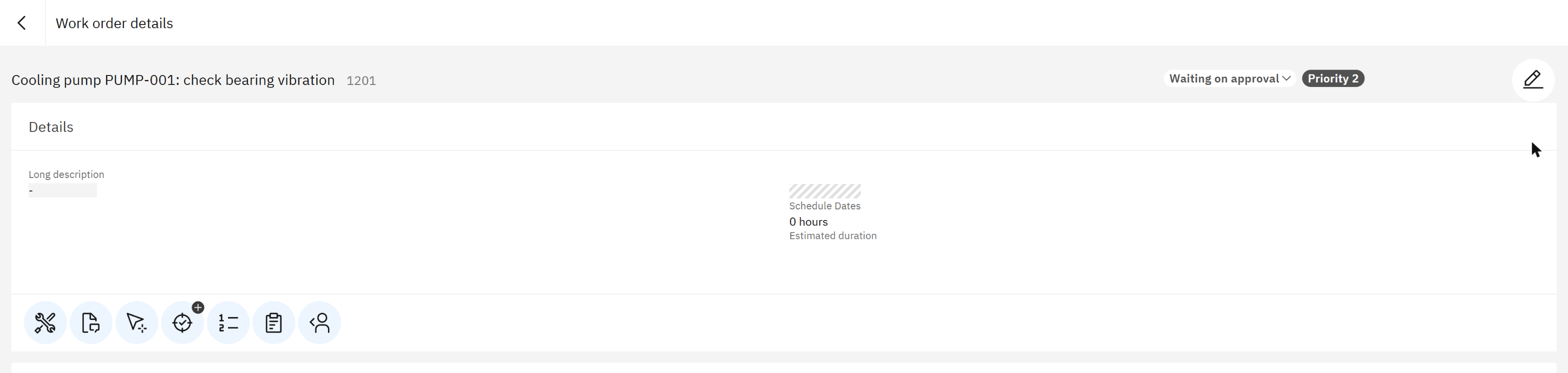
Step 4: publish
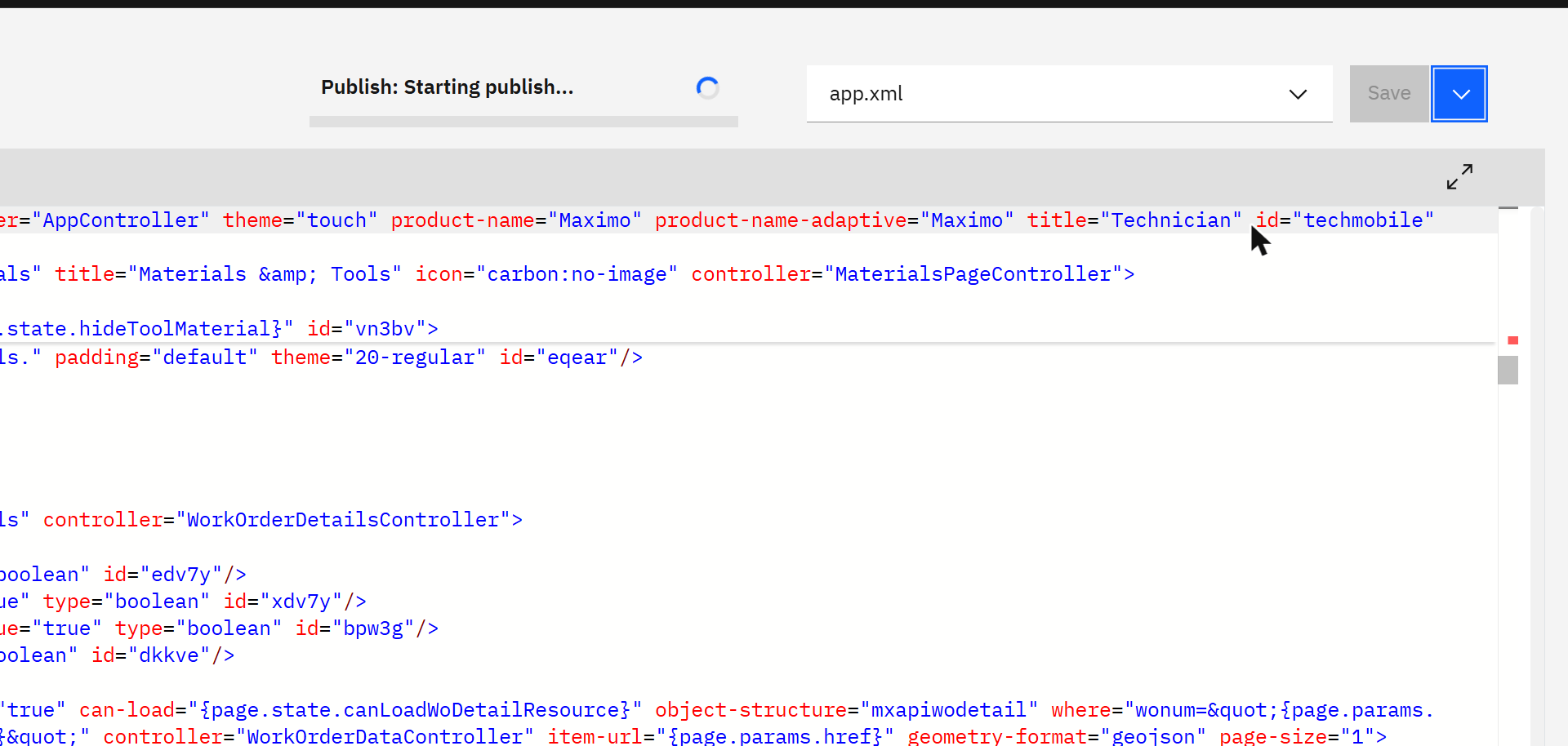
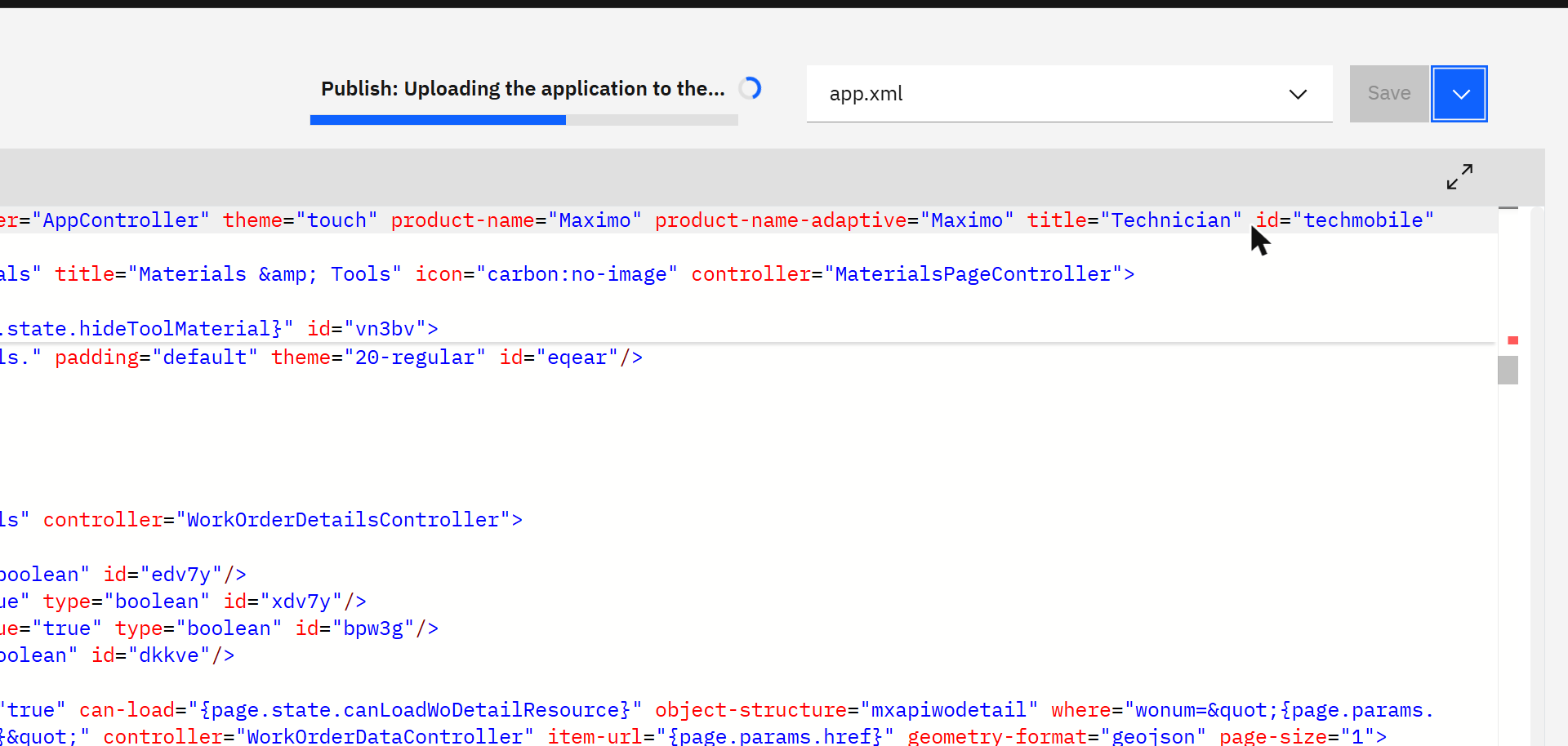
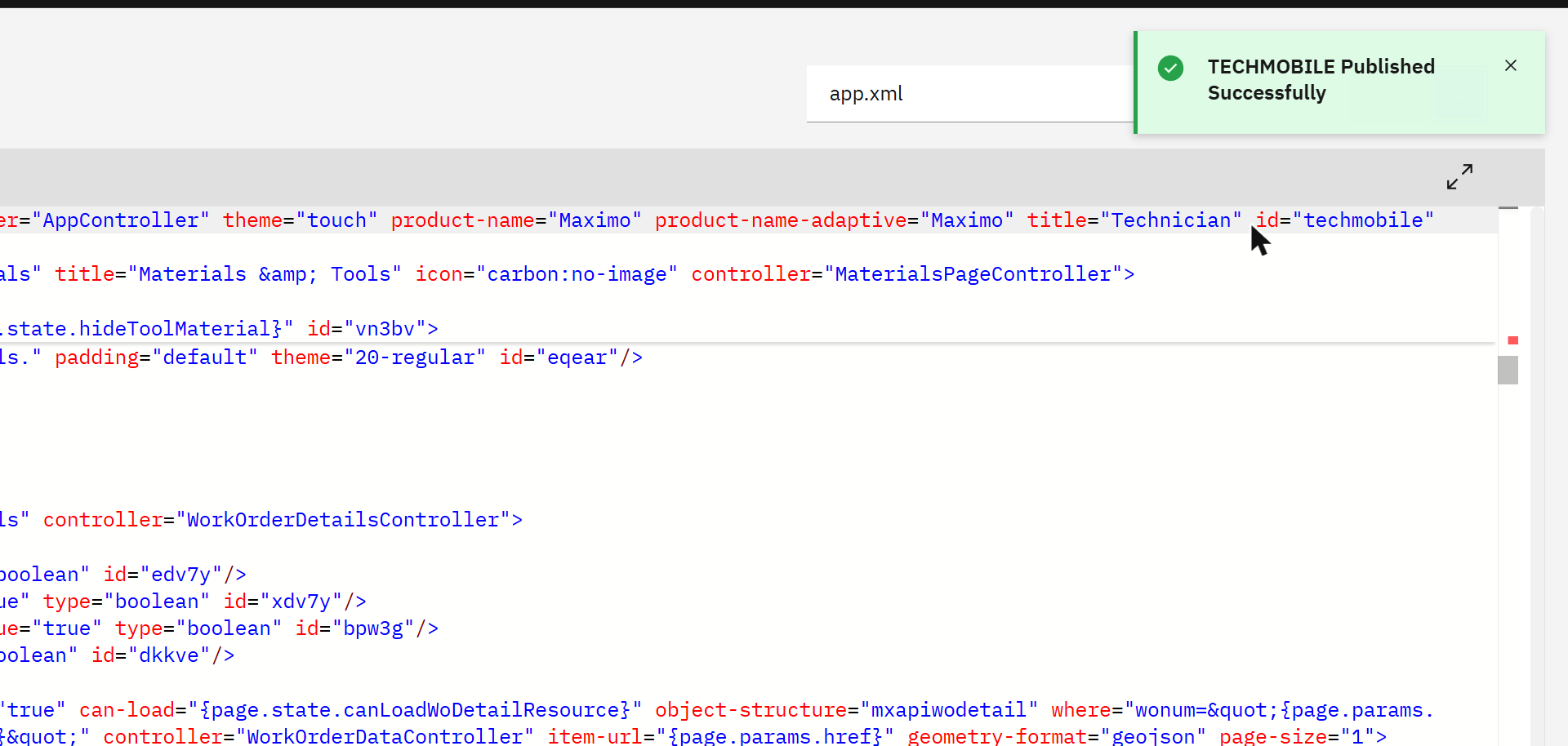
Choose Publish. A notice warns that publishing can take some time, and the status line walks through three stages.
| Status line | What is happening |
|---|---|
| Publish: Starting publish... | The tool collects the project files. |
| Publish: Building the application | XML to React, then React to the final web application. This is the slow part. |
| Publish: Uploading the application to the DB | The new bundle is written to MAFAPPDATA in Manage. |
| Published Successfully | Manage now serves the new bundle. |
Step 5: the revision
Go back to the Application list. TECHMOBILE has moved to the top.

Version and revision together answer the question every support call starts with: "is this IBM's application or yours?" Version 9.2.110.0 revision 0 is exactly what IBM shipped. Revision 1 or more means somebody on your side published a change.
Step 6: delivery
Open the application at its normal address on Manage, not the preview:
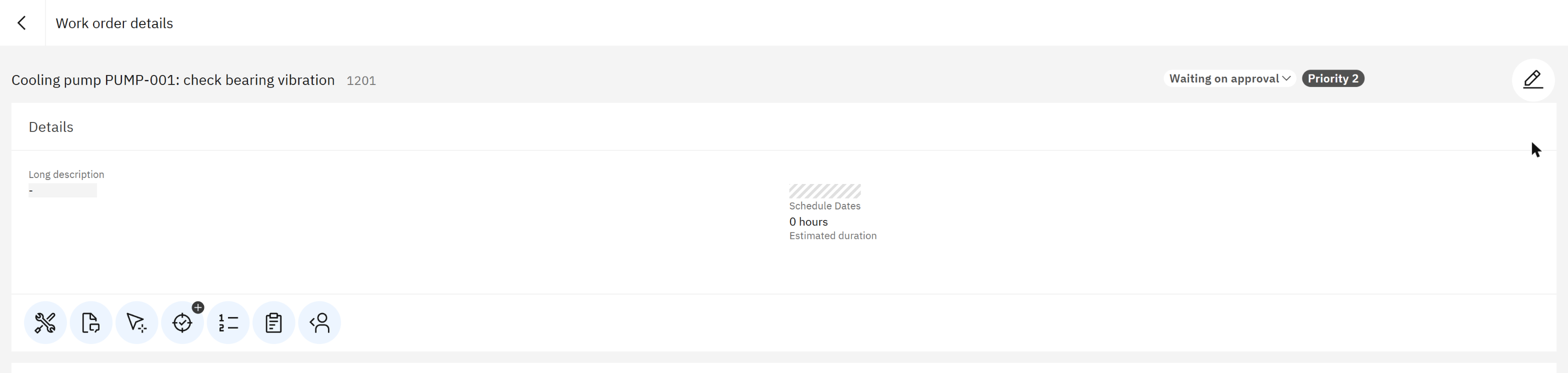
Browser users receive the new bundle the next time the application loads. Maximo Mobile users receive it when the app next checks for updates and downloads the newer revision; a device that stays offline keeps working with the bundle it already has. That last behaviour was not exercised on a phone for this guide.
There is no "publish to a few users". The moment the upload ends, the bundle in the database is the application. Do the edit, save and preview steps on a test system, and move the result to production deliberately: download the source there, upload it here, or rebuild from source control. And publish when field users can afford an update, not at the start of a shift.
Part 8Life of a running application
The second lifecycle is the one that runs every time somebody opens the app. Knowing its order tells you where a problem is and where your own code may step in. These are the calls Technician made, in order, when the preview started:
Listing/maximo/oslc/login                           who is this session
/maximo/oslc/whoami                          user, person, default site and organization
/maximo/oslc/systeminfo                      version of the server
/maximo/oslc/permission/allowedappoptions    which security options this user holds
/maximo/oslc/licenseinfo                     which products are licensed
/maximo/oslc/messages                        text of system messages
/maximo/oslc/os/mxapiwodetail                the first data source loads
/maximo/oslc/os/mxapimaxapp, mxapiorganization, ...   supporting data
Identity first, then permissions and licence, then data. If an app stays blank, the first of these calls that fails tells you which layer to look at.
| Hook | Fires | Typical use |
|---|---|---|
applicationInitialized(app) | Once, when the app has started. | Read a system property, set an application state. |
pageInitialized(page, app) | The first time a page is created. | Prepare page states. |
pageResumed(page, app) | Every time the page becomes the visible one, including coming back to it. | Refresh what may have changed elsewhere. |
onDatasourceInitialized(ds, owner, app) | When a data source object exists, before it has data. | Keep a reference to it. |
onBeforeLoadData(datasource, query) | Just before a data source asks for data. | Add a filter to the query. |
onAfterLoadData(datasource, items, query) | When the rows have arrived. | Compute something from them, set a state. |
onValueChanged({datasource, field, newValue}) | When any field of any data source changes. | React to an edit. Always test which data source and which field first. |
A customization file using two of them looks like this. It is a pattern, not part of the exercise above:
JavaScript// AppCustomizations.js: your code, kept apart from IBM's controllers
class AppCustomizations {
  applicationInitialized(app) {
    this.app = app;
  }

  // show only work orders of my own organization, whatever list is chosen
  onBeforeLoadData(datasource, query) {
    if (datasource.name !== 'todaywoassignedDS') return;
    const mine = datasource.parseQBE({ orgid: '=' + this.app.client.userInfo.defaultOrg });
    query.qbe = { ...query.qbe, ...mine };
  }

  // warn when the estimated duration is cleared
  onValueChanged({ datasource, field, newValue }) {
    if (datasource.name === 'dsCreateWo' && field === 'estdur' && !newValue) {
      this.app.toast('Estimated duration is empty', 'warning');
    }
  }
}
export default AppCustomizations;
The data source names in it are examples, and the helper calls should be checked against the JS API Documentation linked from the tool. Use the Navigator search to find the real IDs in the app you are changing.
Part 9Three ways to customize, and when to use each
IBM's guidance on applying configurations is short: use the customization file for most changes, extend a controller class for the complex ones, and never edit IBM's base controller files. In practice there are three levels.
| Level | You change | Good for | Cost at upgrade |
|---|---|---|---|
| 1. Configuration | app.xml, through Properties or the Code editor | Labels, titles, hiding a field, adding a field that the object structure already has, reordering. | Lowest. "Migrate prior configurations" is made for this. |
| 2. Customization file | AppCustomizations.js | Filtering data, defaults, validation, reacting to a change, small calculations. | Low. Your code is in its own file and hooks in by name. |
| 3. Extended controller | A class that extends one of IBM's controllers | Changing how an existing action behaves; new pages with real logic. | Higher. You depend on the insides of a class that IBM may change. |
The patterns below come up in almost every project. They are written in the app.xml tag language.
| Need | How |
|---|---|
| Show one more field | Add <attribute name="supervisor"/> to the data source's schema, then a <field label="Supervisor" value="{woDetailResource.item.supervisor}"/> on the page. Schema first, or the field is always empty. |
| A field from a related record | Dot notation in the schema, serviceaddress.streetaddress, for one-to-one. For a list of children, rel.failurelist{failurecode,description}. |
| Hide a button from people without the permission | sigoption="MXAPIWODETAIL.CREATEWO" on the control. The framework checks it against the options returned at start-up. |
| Filter a list on the device | mobile-qbe-filter on the data source. See the trap below. |
| A pick list | A lookup inside dialogs, bound to its own data source, opened from the field. |
| A required value | required="true" on the input, or on the schema attribute so it applies everywhere the field is used. |
A where clause on a data source decides which records are sent to the device. Once they are on the
device, the offline database does not apply it again. To filter what an offline user sees, use
mobile-qbe-filter or a hook in code. A filter that works perfectly in the browser and not at all on the
tablet is nearly always this.
A button says on-click="saveHazards", the controller has saveHazard. Nothing happens and
nothing is logged. When a click does nothing, compare the two spellings before anything else. The same silence
follows from two components sharing one id.
Part 10Maximo Mobile: the same apps, offline
Maximo Mobile is one app from the app store that contains no Maximo screens of its own. After sign-in it downloads the Navigator and every application marked Mobile download = true that the user may open, then the data those applications need, and from then on it works without a network.
| Piece | What it does |
|---|---|
| Server address | What the user types at first start: the suite's workspace home address, https://<workspace>.home.<your MAS domain>. Not the Manage address. |
| Navigator | The home screen: the tiles of the applications this user has. |
| Bundles | The same zips a browser gets, downloaded once and kept. |
| Mobile master schema | One combined definition of every object and field that all the active mobile apps use. The server builds it from their schemas, so adding an attribute to a schema changes what devices store. |
| Preloaded database | Slow-changing reference data (domains, classifications and the like) prepared on the server in advance and downloaded in one piece before the work data, so a first sync does not take all morning. |
| Transactions | What the user does offline is queued on the device and sent when a connection returns. |
| In a browser | In Maximo Mobile | |
|---|---|---|
| Bundle | Fetched from Manage at each visit. | Stored on the device, replaced when a newer revision is found. |
| Data | Every screen asks Manage. | Read from the device database; synchronised in the background. |
where on a data source | Applied to each request. | Applied to what is downloaded. |
| After you publish | Next load. | Next update check. |
Typing the Manage address into Maximo Mobile ends in "The app does not exist". The app wants the workspace home address. And the suite's built-in superuser can sign in to the suite but not to Maximo Mobile, because Manage has no user record for it. Test with a real user who has been given access to Manage.
Part 11Working outside the tool
The browser tool is enough for configuration. For larger work, developers take the project out with
Download app src and use the same build the tool runs. The project's package.json shows it
plainly:
JSON{
  "dependencies": {
    "@maximo/maximo-js-api": "3.2.803",
    "@maximo/react-components": "3.2.803",
    "mobx": "6.15.4",
    "react": "18.3.1"
  },
  "scripts": {
    "build": "npx @maximo/maxdev-cli build --in ./src/app.xml --out ./build/app/src/ --update-ids --copy",
    "build:production": "yarn build && yarn labels && cd build/app && react-scripts build",
    "labels": "npx @maximo/maxdev-cli localize -i ./src/app.xml -o ./src/i18n/labels.json --format json"
  }
}
Two steps, as in Part 1: maxdev-cli build turns app.xml into React files, then the bundler turns
those into the web application. Three facts save time here:
- The
@maximopackages are not on the public npm registry. The toolchain ships as thegraphite-configurationcontainer image of the suite. Build inside that image, and use the one that matches your release. - Put the project in source control. The tool keeps one current state per application. Git gives you history, review and a way back.
- Upload file is the way back in. A controller edited and tested outside goes into the tool's project with it, and from there through preview and publish like any other change.
Part 12When it does not work
| Symptom | Look at |
|---|---|
| The Application list stays grey for a long time | It is slow to load, half a minute and more here. Wait before you assume it is broken. |
| Every work list says "No results found" | The signed-in person: labor record, assignments, default site. The lists are saved queries about that person. |
| The Canvas shows "undefined" in labels | Nothing. The Canvas has no data. Use Start Preview to see real values. |
| A new field is always empty | Is the attribute in the data source's schema? Does the object structure expose it? |
| A click does nothing | The handler name in app.xml against the method name in the controller; duplicate IDs. |
| Publish fails | Download logs in the actions menu. A build error names the line of app.xml. |
| Browser shows the change, device does not | Has the device checked for updates since the publish? Is "Mobile download" true for the app? |
| A filter works online, not offline | where against mobile-qbe-filter, Part 9. |
| Maximo Mobile says "The app does not exist" | The server address. It must be the workspace home address. |
| After a product update the app looks original again | Migrate prior configurations, then preview and publish. |
ValueWho gains what
Everything above is about how the applications are built. This is why an organisation cares.
| Who | What changes for them | How you would measure it |
|---|---|---|
| Technicians in the field | Screens shaped around the job, usable without a network. Work is recorded at the asset, not at a desk at the end of the shift. | Time between finishing a job and it being recorded; share of work orders completed on a device. |
| Supervisors and planners | Status, labour and failure data arrive the same day, so tomorrow's plan uses today's facts. | Age of the newest data in the morning planning meeting; work orders closed without actuals. |
| Maximo administrators | A label, a field or a filter changes in a browser tool in minutes and is previewed before anyone sees it. | Lead time from a change request to it being live; changes rolled back. |
| IT and the upgrade budget | Changes are configuration kept apart from IBM's code, with a tool to carry them onto a new version. | Effort spent re-applying customizations at each update. |
| The business as a whole | One application serves desktop and mobile, so there is one thing to train, secure and support. | Training hours per new user; number of separate mobile tools retired. |
No figures are promised here. Record your own baseline for each measure before the change, and compare after one quarter.
GlossaryThe words, once more
| Word | In one line |
|---|---|
| MAF | Maximo Application Framework: how the modern Maximo applications are built and changed. |
| Graphite | The framework's engineering name; the word in addresses and package names. |
| Role-based application | An app shaped around one job, such as Technician. |
| app.xml | The description of an application in tags. |
| Page, state, data source, controller | A screen; a value the screen reacts to; the link to data; the code behind. |
| Object structure | The Maximo integration object a data source reads and writes. |
| React, MobX | The library that draws the screen; the one that tells it what changed. |
| Carbon | IBM's open-source design system behind the components. |
| Bundle | The built application as one zip, with its source inside. |
| MAFAPPDATA | The Manage table where bundles are stored. |
| Version, revision | What IBM shipped; how many times you published on top of it. |
| Preview, publish | A private build to check; the build everyone gets. |
| Maximo Mobile | The container app that runs the bundles offline. |
| Mobile master schema, preloaded database | The combined data definition for devices; reference data prepared in advance. |
Run on IBM Maximo Application Suite 9.2 with Manage 9.2.4 on Red Hat OpenShift. Technician was at version 9.2.110.0; the exercise published revision 1. The Maximo Mobile behaviour in Part 10 is described from the product's design and from other systems, and was not exercised on a device for this guide.