IBM Maximo Real Estate and Facilities · Integration and data loading · A guide for Maximo people
Getting data in and out of MREF: four doors, and when to use each
A new MREF system is empty, and a live one never stands alone: buildings and people arrive from HR and finance, costs go back to the ledger, sensors and Maximo want to read spaces. Maximo Real Estate and Facilities (MREF) has four ways to move data, and a junior admin usually only hears about the first. This guide walks through all four on a real system, with a real load we ran: 51 rooms of one building, from a text file to records.
- The four doors: Data Integrator, Integration Object, DataConnect and OSLC, and which to pick.
- A worked example for each door: a real file, a real mapping, a real staging table and real API calls.
- How to build a Data Integrator file, with the real header and rows we loaded.
- How to check a load afterwards, and where the errors are.
- How an Integration Object maps a file or a web call to MREF fields.
- Why load order matters, and how the Data Load Manager fixes it for you.
- What OSLC gives other systems, including the rest of Maximo Application Suite.
Reading time: about 15 minutes. Companion guides: your first MREF app, the Admin Console and the Class Loader.
| In Maximo | In MREF |
|---|---|
| Application import, or MxLoader with a spreadsheet | Data Integrator: a tab-delimited text file, one per form |
| Object structure (which fields travel together) | The data map of an Integration Object, or an OSLC resource |
| Enterprise service with flat files or an HTTP endpoint; publish channel | Integration Object: inbound or outbound; scheme File, Http Post or File to DC |
| Interface tables | DataConnect: staging tables that an agent turns into records |
The REST / OSLC API (/maximo/api/os/…) | OSLC service providers and resources (/oslc/…) |
| Message reprocessing, message tracking | Data Upload, Data Upload Errors, and each Integration Object's Execute History |
| Cron task | An agent (Data Import Agent, DataConnect Agent, Scheduler Agent) |
| Migration Manager | Object Migration. It moves configuration (forms, workflows), not business data, so it is not in this guide. |
Part 1The four doors
| Door | Who drives it | Best for | Not for |
|---|---|---|---|
| Data Integrator | An admin, by hand | One-off loads and corrections: a few hundred or thousand records of one kind | Anything that must repeat every night |
| Integration Object | MREF itself, on demand or on a schedule | Repeating exchanges with a saved mapping: a nightly file, a call to a web service | Very large volumes |
| DataConnect | An outside tool that writes to staging tables | Large, regular feeds from HR, finance or a data warehouse; initial migrations | A quick fix of ten records |
| OSLC | The other system, record by record | Live reads and updates from another application | Bulk loads |
None of these doors writes straight into the business tables. Each one creates or updates records through MREF itself, so the record gets its ID, its place in the hierarchy, its state, and its workflows run. That is why a load can be slow, and why you never load with SQL.
Part 2Door 1: Data Integrator
Open Tools › Administration › Data Integrator. It is one screen: say what you are loading, choose a file, upload.
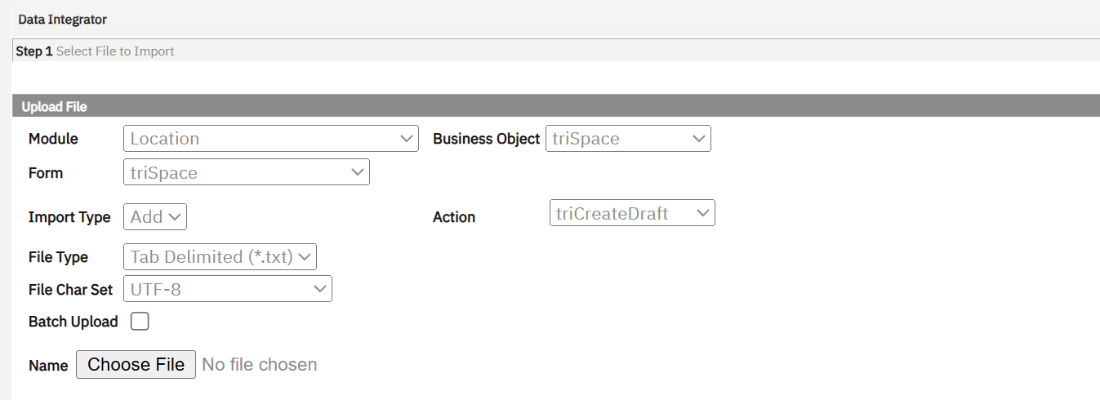
| Field | What it means |
|---|---|
| Module / Business Object / Form | What kind of record the file contains. One file loads one form. Our system offers 111 modules. |
| Import Type | Add creates records. For some objects an Update choice appears, which matches existing records on their key. |
| Action | The state-transition action run on each record after it is created. triCreateDraft leaves the records as drafts; another action can activate them at once. |
| File Type / Char Set | Tab-delimited text, UTF-8. Not CSV, not Excel. |
| Batch Upload | For big files: the file is queued and processed in the background instead of while you wait. |
| Create Header (top right) | Downloads an empty file with the right column names for the form you chose. Always start from it. |
Worked example: 51 rooms from a BIM model
The need: the Administration Building exists in MREF with two floors, but no rooms. The rooms are in the
architect's model. The steps: export the room list from the model, put it in the generated header, upload with
action triCreateDraft. Here is the top of the file we loaded.
triIdTX   triNameTX   …   triRevitUniqueIdTX                        triAreaNU   Parent
L1_102    L1_102      …   ed5f18b3-e093-46ec-8ada-…-0005b0b7        246.64      \Locations\Offices\North America\Administration Building (BIM)\L1
L1_103    L1_103      …   ed5f18b3-e093-46ec-8ada-…-0005b0b9        248.00      \Locations\Offices\North America\Administration Building (BIM)\L1
… 51 rows in all
Three rules explain the file:
- The first line is field names, not labels:
triNameTX, not "Name". The suffix tells you the type:TXtext,NUnumber,DAdate,LIlist,CLclassification. - The
Parentcolumn places the record. It holds the full hierarchy path of the parent, here the floor. Without it a space would exist but hang nowhere. - Columns are separated by tabs. Build the file in a spreadsheet and save as tab-delimited text.
This is the application import of Maximo, with two differences. The file is per form, not per object structure, and the parent is given as a path, where Maximo would use a parent key and a site.
Part 3Checking a load: Data Upload
The upload screen only tells you that the file was accepted. What happened to it is in Tools › System Setup › System › Data Upload: one line per file ever loaded.
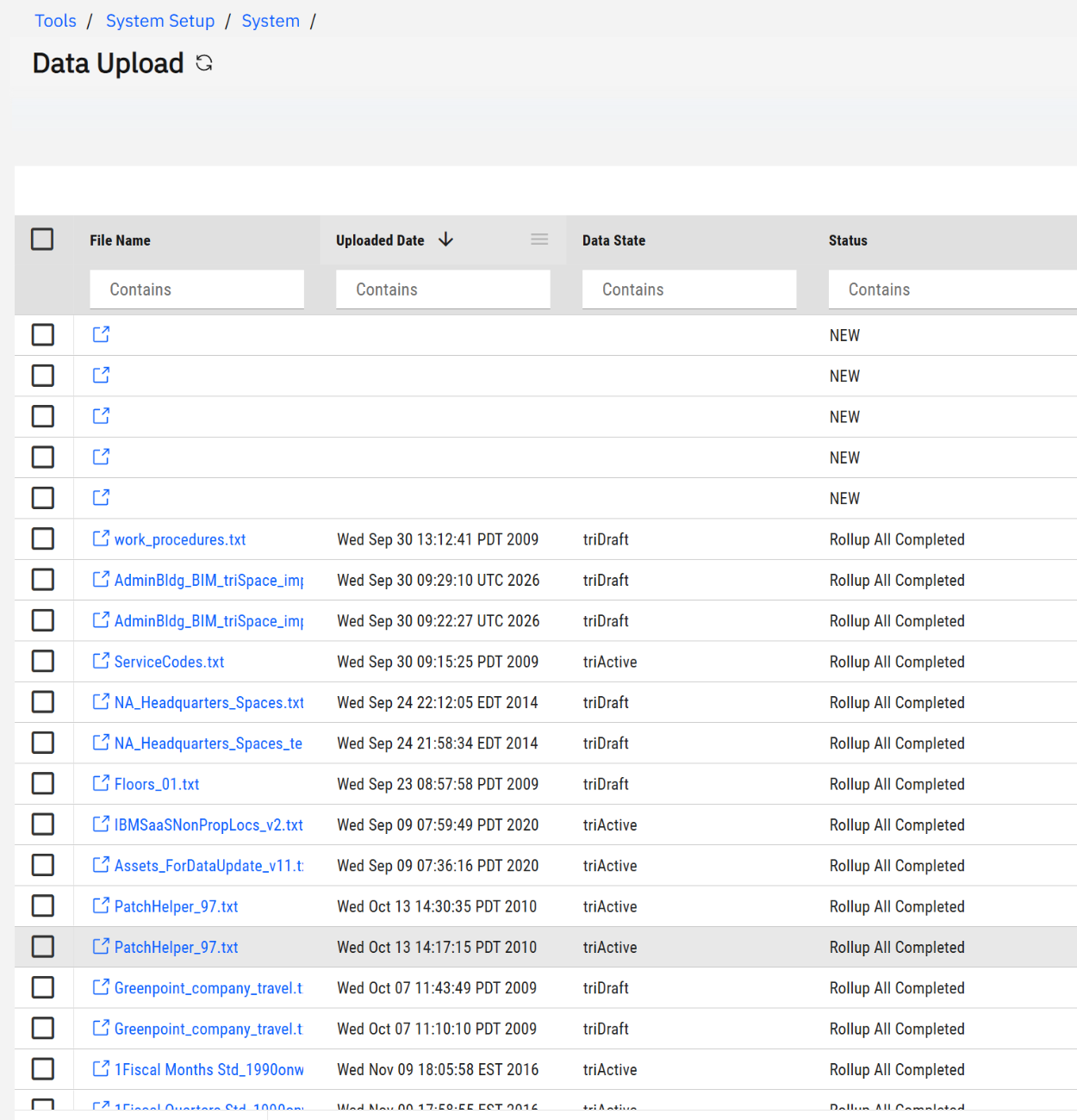
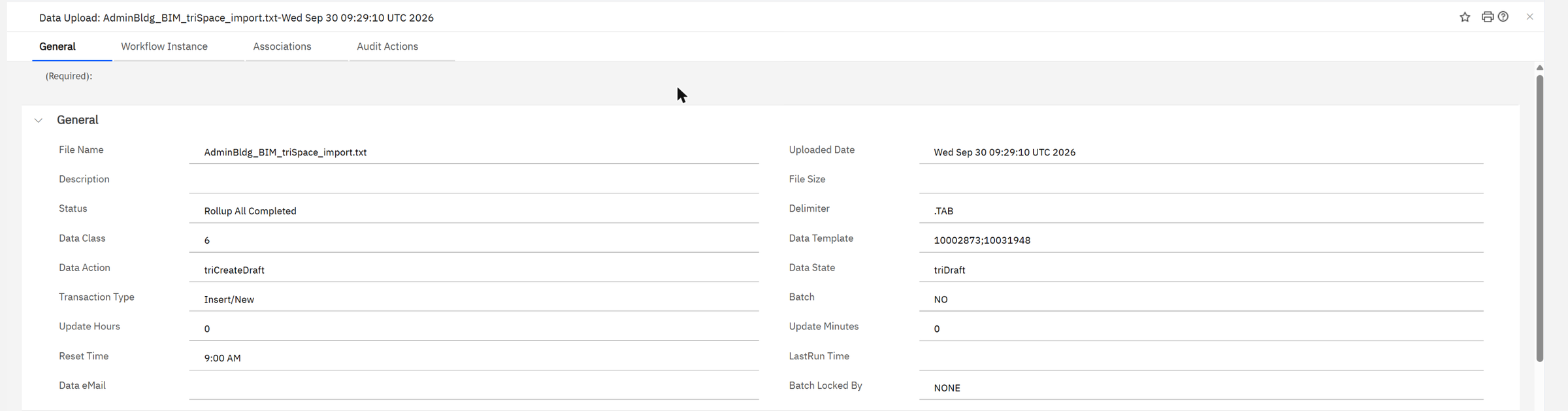
| What to read | What it tells you |
|---|---|
| Status | Where the file is. NEW: waiting for the Data Import Agent. Rollup All Completed: every row was processed and the totals rolled up. |
| Data Action, Data State | What was done to each record and the state it ended in: here created as a draft. |
| Transaction Type | Insert/New or update. |
| Data Upload Errors (next menu item) | One line per row that failed, with the reason. A file can be "completed" and still have rejected rows, so always look here. |
Uploads are processed by an agent. If a file stays in status NEW, the Data Import Agent is not running. Check it in the Admin Console, as explained in the Admin Console guide.
Look at the list: we loaded the space file twice, seven minutes apart. The first time, the header that MREF generated
contained triNameTX twice: once for the space, once for its space class. Both values landed in the space
name. We removed the second column and loaded again. Read the generated header before you fill it.
Part 4Door 2: Integration Object
Data Integrator is a person and a file. An Integration Object is the same idea saved as a record, so it can run again tomorrow, or on a schedule, without anyone. Open Tools › System Setup › Integration › Integration Object.
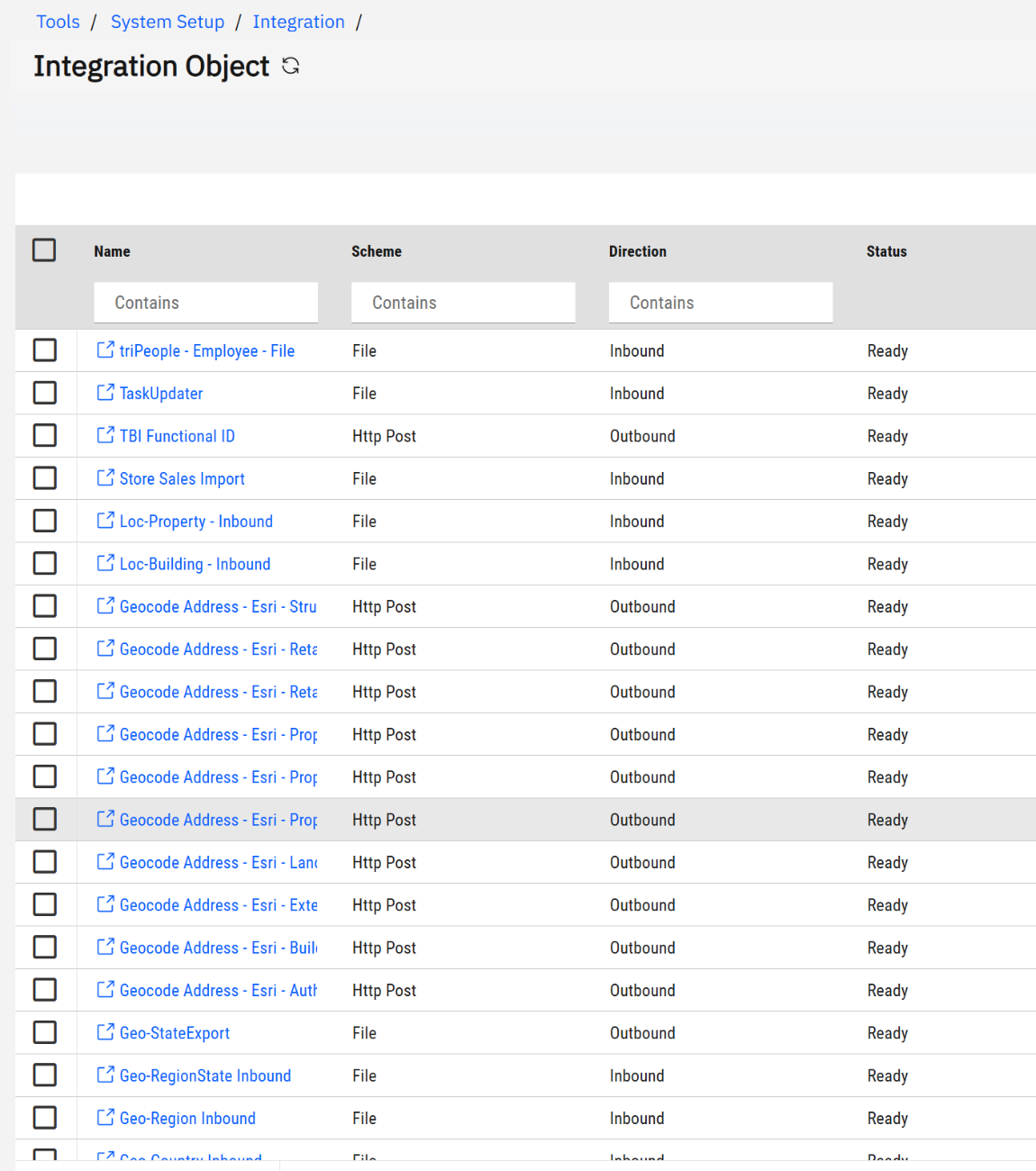
Two columns describe each one:
- Direction: Inbound brings data into MREF, Outbound sends it out.
- Scheme: how the data travels. File: a delimited file read straight into records. Http Post: a call to a web address. File to DC: a file copied into a DataConnect staging table (Part 6). Those three are the ones in use on our system.
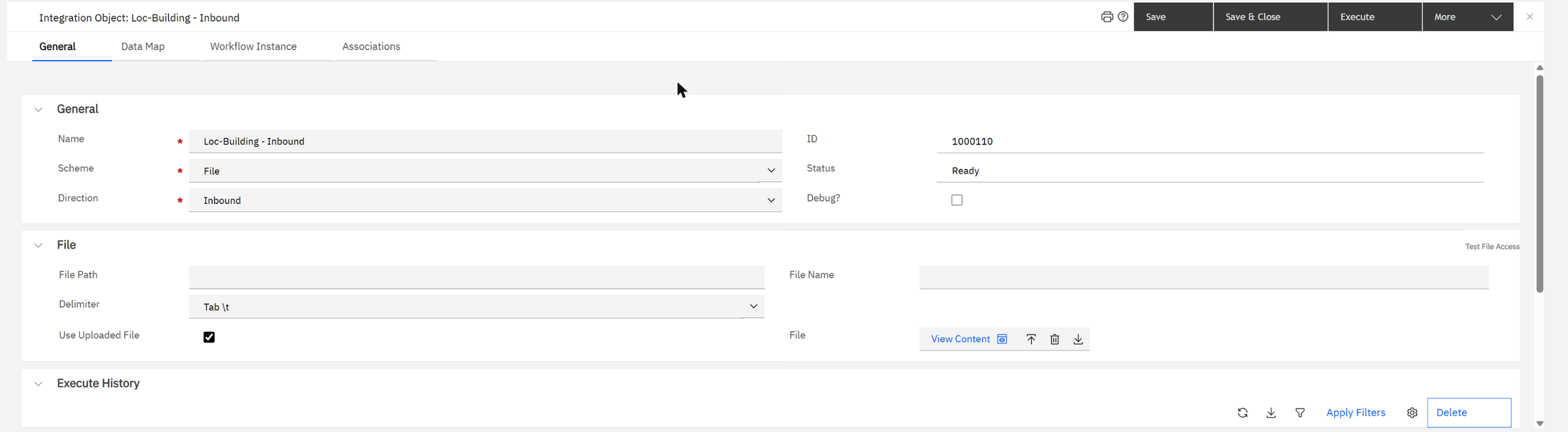
The General tab says where the file is: a path on the server, or an uploaded file ("Use Uploaded File"). Execute runs it now; the Execute History section below keeps one line per run, with its result. Debug? writes details to the log while you are building the mapping.
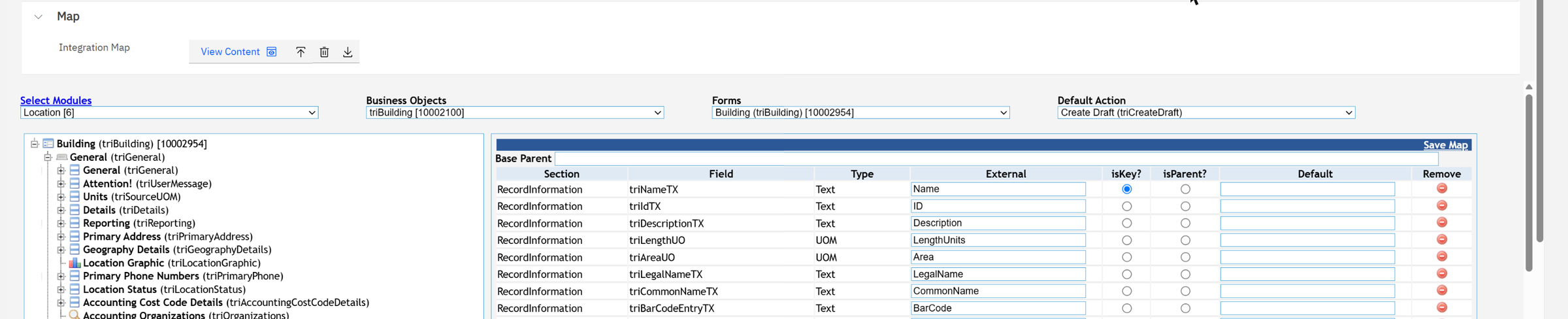
The Data Map tab is the heart of it. You pick the module, business object and form, then drag fields from the
tree on the left. Each line maps an MREF field (triNameTX) to the name used outside (Name):
| Column | What it means |
|---|---|
| External | The column name in the file, or the parameter name in the web call. Here you can use friendly names, unlike Data Integrator. |
| isKey? | The field that identifies an existing record. With a key, the same file can create new records and update existing ones. |
| isParent? | The field that holds the parent, to place the record in the hierarchy. |
| Default | A value to use when the file gives none. |
| Default Action | The action run on each record, as in Data Integrator: here Create Draft. |
Worked example A: a building file, inbound
The need: the property team keeps its building list in a spreadsheet and sends an updated copy every month. The integration object Loc-Building - Inbound above is made for that. Its data map decides the column names, so the file can use plain words:
Name                 ID        Description          Area     LegalName             CommonName
Riverside Office     BLD-2001  Regional office      48500    Riverside Office LLC  Riverside
Harbour Warehouse    BLD-2002  Distribution centre  120000   Harbour Storage Inc   Harbour
These two rows are a sample we wrote for this guide; the column names are the real External names from the data map.
- On the General tab, tick Use Uploaded File and upload the file with the arrow button (or give a server path for a file that arrives every month).
- Click Execute.
- Read Execute History at the bottom of the tab: one line per run, with its result.
- Because Name is marked isKey, the map can recognise a building that already exists, so next month's file does not have to create it a second time.
Worked example B: asking Esri for coordinates, outbound
The need: a building has an address, and the map needs a latitude and longitude. MREF ships integration objects that ask Esri's geocoding service.
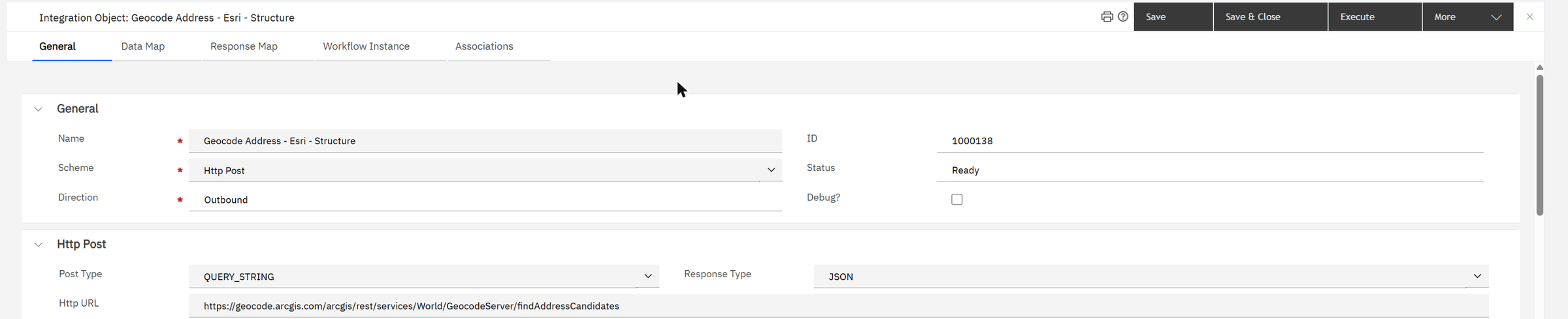
| Setting | Value on our system | What it does |
|---|---|---|
| Scheme / Direction | Http Post / Outbound | MREF calls a web address. |
| Http URL | https://geocode.arcgis.com/arcgis/rest/services/World/GeocodeServer/findAddressCandidates | The service that turns an address into candidates with coordinates. |
| Post Type | QUERY_STRING | The fields of the data map are sent as parameters in the address of the request. |
| Response Type | JSON | How to read the answer. |
| Data Map tab | the address fields of the record | What is sent. |
| Response Map tab | fields of the answer, mapped to MREF fields | Where the answer goes. An outbound object has this tab; an inbound one does not. |
Our list shows several of these, one per kind of record with an address (building, land, structure, retail location…).
This record has UserName and Password fields. When we opened it, the browser filled them in by itself with a saved login that had nothing to do with Esri. Had we clicked Save, the wrong credentials would have been stored in the integration object. Look at those two fields before saving any integration object, and close without saving if you only came to read.
One Integration Object is an object structure, an enterprise service or publish channel, and its endpoint, rolled into one record. The data map is the object structure; Direction and Scheme are the service and the endpoint.
Part 5Load order and the Data Load Manager
A space needs its floor. A floor needs its building. A building needs its property, its city and its organization. If you load in the wrong order, rows fail because their parent does not exist yet. The Data Load Manager (Tools › System Setup › Integration › Data Load Manager) stores the right order as data load sets.
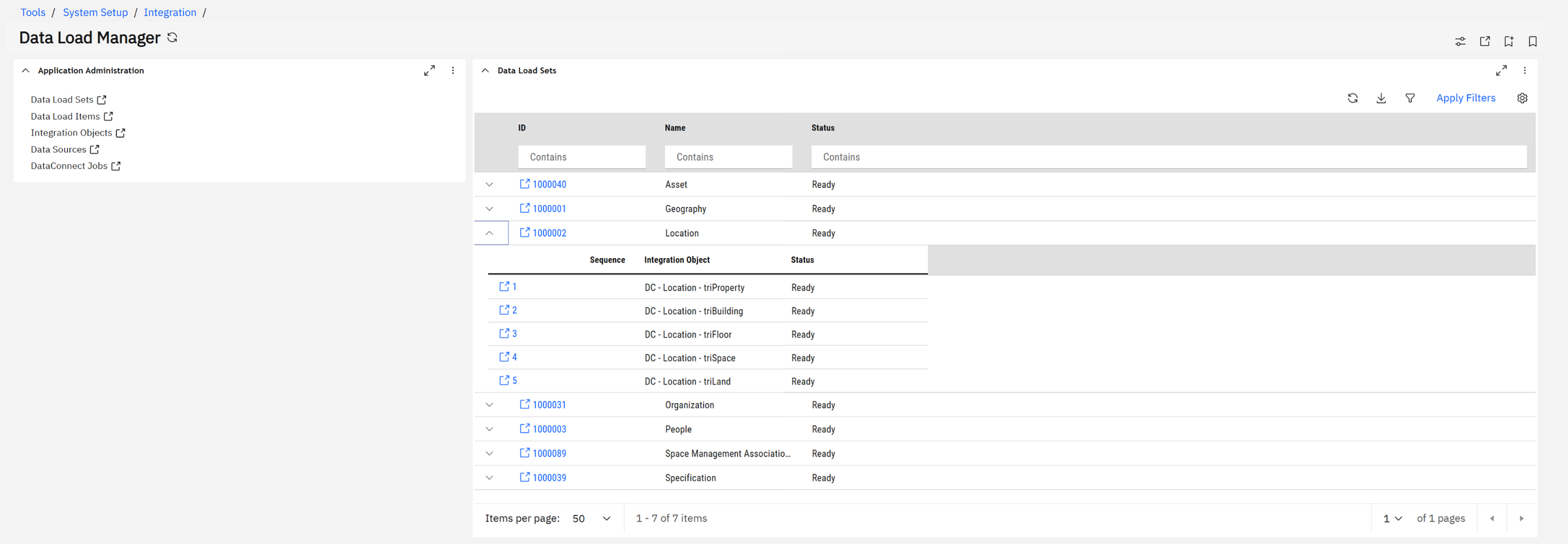
Each set is a numbered list of integration objects, run in sequence. The seven sets on our system are Asset, Geography, Location, Organization, People, Space Management Associations and Specification. The Location set shows the principle:
1 Property → 2 Building → 3 Floor → 4 Space → 5 Land. Parents first, children after.
Between sets the same logic applies: reference data such as geography and organizations first, then locations, then people, and last the links between them, such as who sits in which space.
The names in the set start with "DC": these integration objects feed DataConnect, the third door.
Part 6Door 3: DataConnect
For big volumes, files read row by row are too slow and too fragile. DataConnect works differently: an outside tool (an ETL tool, a database job) writes rows into staging tables in the MREF database, one staging table per business object, plus one row in a job-control table that says "this batch is ready". The DataConnect Agent picks up the job and runs a workflow that turns each staging row into a record, with all the usual checks.
- A business object must be enabled for staging in the Data Modeler before it has a staging table.
- The staging row says what to do with it (insert or update) and carries the path of its parent, like the
Parentcolumn of Data Integrator. - The job is followed in DataConnect Jobs, a link on the Data Load Manager page. Failed rows stay in the staging table, marked, so they can be corrected and run again.
Worked example: the same rooms, through DataConnect
The need: not 51 rooms but 50,000, refreshed from a space database every week. Here is what really exists on our system for spaces.
1. The staging table. The space business object has one, called S_TRISPACE. Its real columns:
S_TRISPACE
  DC_JOB_NUMBER    which job this row belongs to
  DC_CID           groups the rows that belong together
  DC_SEQUENCE_ID   the order of the row inside the job
  DC_STATE         the state of the row
  DC_ACTION        what to do with it: insert, update…
  DC_PATH          the hierarchy path of the PARENT (the floor)
  DC_GUI_NAME      the form to use: triSpace
  DC_PROJECT       the project, when the record belongs to one
  TRIIDTX  TRINAMETX  TRIAREANU  TRIAREAUO  TRICAPACITYNU  TRISTATUSCL
  TRIRESERVECALENDARTX  TRIRESERVEROOMTYPELI  TRIUSAGEUNITLI  …   (19 columns in all)
The first eight columns are the control columns. The rest are the fields of the business object that were ticked for staging: compare them with the header of our Data Integrator file in Part 2. They are the same fields.
2. The job table. One row in DC_JOB announces a batch. Its real columns:
DC_JOB
  JOB_NUMBER   JOB_NAME   JOB_TYPE   BO_NAME   STATE   JOB_RUN_CTL
  SOURCE_SYS_ID   PROCESS_SYS_ID   USER_ID   CREATED_DATE   UPDATED_DATE
3. The load, in order. The outside tool does two things, and the order matters:
-- first the rows (one per room), all with the same job number
INSERT INTO S_TRISPACE (DC_JOB_NUMBER, DC_CID, DC_SEQUENCE_ID, DC_STATE, DC_ACTION,
                        DC_PATH, DC_GUI_NAME, TRIIDTX, TRINAMETX, TRIAREANU)
VALUES (5001, 1, 1, <state: new>, <action: insert>,
        '\Locations\Offices\North America\Administration Building (BIM)\L1',
        'triSpace', 'L1_102', 'L1_102', 246.64);

-- then, last, the job row that says "ready"
INSERT INTO DC_JOB (JOB_NUMBER, JOB_NAME, JOB_TYPE, BO_NAME, STATE, …)
VALUES (5001, 'Weekly spaces', <type>, 'triSpace', <state: new>, …);
This is a sketch to show the shape; we did not run it. The table and column names are real, the numeric codes for the states and actions are in IBM's DataConnect documentation. The DataConnect Agent sees the new job, processes its rows through a workflow, and marks each row and the job as done or failed.
4. No ETL tool? Use "File to DC". The integration objects whose names start with "DC" do the first step for you: they read a file and write it into the staging table.
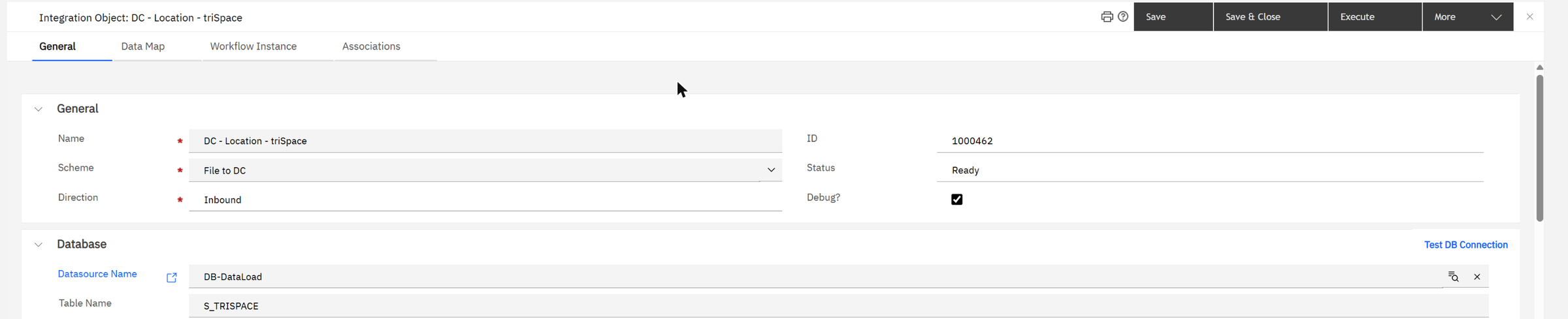
On our system the data source of these objects, DB-DataLoad, still carries the connection of the demo it was built on (an Oracle database on localhost), while the system itself runs on Db2. Click Test DB Connection and correct the data source before the first Data Load Manager run, or every "DC" object fails.
These are Maximo's interface tables: the outside system writes to a table, a queue row announces it, and a cron task processes it. The DataConnect Agent is that cron task. It is one of the agents listed in the Admin Console guide, and it must be running on one server.
Part 7Door 4: OSLC
The first three doors move batches. OSLC is for another application that wants one record now: read a building, create a service request, update a reading. OSLC is a REST standard; MREF publishes its data as service providers that group resources.
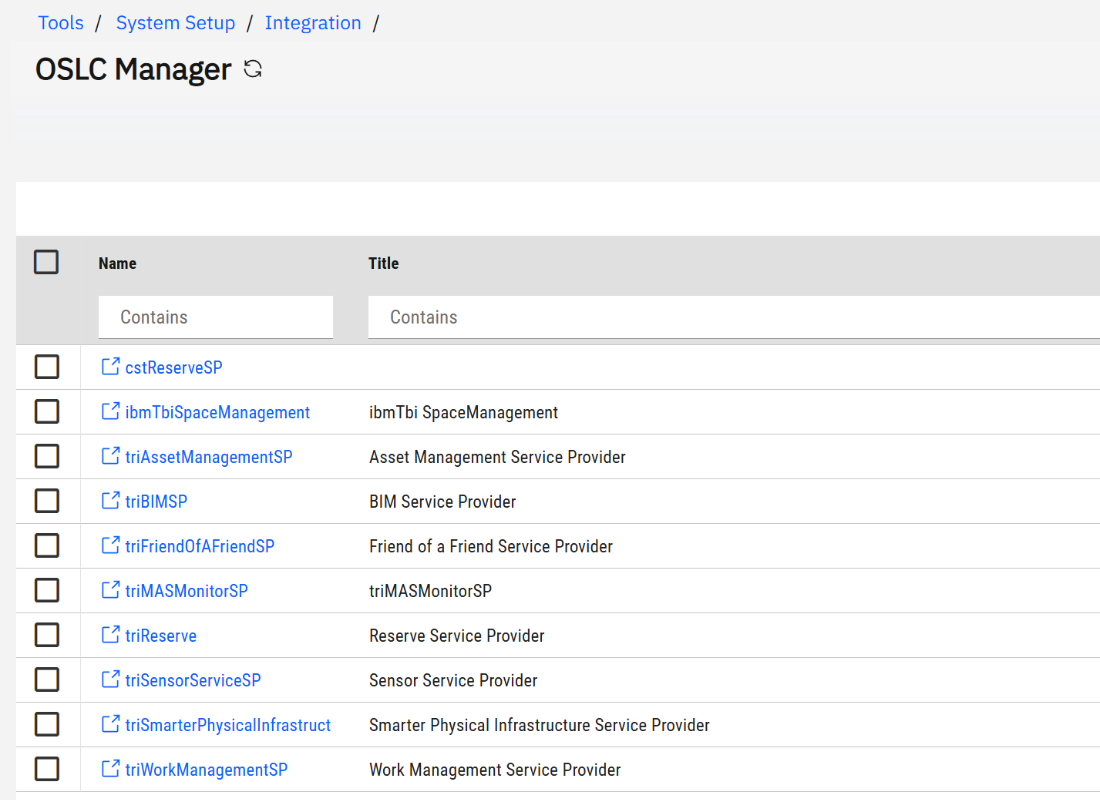
- OSLC Manager lists the service providers. Each one is a small catalogue: "here are the resources about work management".
- OSLC Resource Manager lists the resources: 138 on our system. A resource is a named set of fields on a business object, with the query that selects the records. This is where you add a field to what the outside world can see.
- OAuth Settings, in the same menu, is where outside applications are registered so they can sign in without a person.
Other parts of Maximo Application Suite come in through this door: the provider triMASMonitorSP is the link
to Maximo Monitor, and the reservation and space providers serve the workplace applications.
Worked example: reading assets from outside
The need: another application wants the list of assets, then the details of one. These are real requests against our system, signed in as an MREF user; the host name is shortened.
1. What is there? The list of service providers:
GET https://HOST/oslc/sp

  …/oslc/sp/triAssetManagementSP
  …/oslc/sp/triWorkManagementSP
  …/oslc/sp/triReserve
  …/oslc/sp/triBIMSP                      (ten in all)
2. What can I ask the asset provider? Opening /oslc/sp/triAssetManagementSP lists its queries, among
them /oslc/spq/triAssetsQC.
3. Ask, two at a time:
GET https://HOST/oslc/spq/triAssetsQC?oslc.pageSize=2
Accept: application/json

{ "oslc:responseInfo": { "oslc:totalCount": 1825,
                         "oslc:nextPage": { "rdf:resource": "…/triAssetsQC?oslc.pageSize=2&pageno=2" } },
  "rdfs:member": [ { "rdf:resource": "https://HOST/oslc/so/triAssetRS/10375298" },
                   { "rdf:resource": "…" } ] }
1,825 assets, two per page, and a ready-made link to the next page. Each member is a link to one record.
4. Read one record:
GET https://HOST/oslc/so/triAssetRS/10375298
Accept: application/json

{ "dcterms:identifier": "10375298",
  "dcterms:title": "Blackberry Curve",
  "spi:triBusinessObjectLabelSY": "Telephones",
  "spi:triCreatedSY": "2009-09-28T16:52:21-07:00",
  "spi:action": "https://HOST/oslc/system/action/triAssetRS/10375298",
  … }
The pattern is always the same: /oslc/sp for the catalogue, /oslc/spq/<query> for a list,
/oslc/so/<resource>/<id> for one record. Add oslc.select=* to a query to get the fields in
the list itself.
You already know this from Maximo's own OSLC and REST API: a service provider plays the role of the API home, a resource is an object structure exposed for a purpose. The habits are the same: ask only for the fields you need, and give the integration its own user with the narrowest security.
When none of the four fits, a custom Java class in a Class Loader can read or write through MREF's own API: see the Class Loader guide. Reach for it only after the four configuration doors.
Part 8More traps
| Symptom | Cause | What to do |
|---|---|---|
| The upload stays in status NEW | The Data Import Agent is stopped. | Start it in the Admin Console. |
| Records are created but appear nowhere in the hierarchy | No Parent column, or a path that does not match exactly. | Copy the path from the parent record's Hierarchy Path field. |
| Two values end up in one field | The generated header has the same field name twice. | Remove the column you do not need before filling the file. |
| Records exist but users do not see them in lists | They were created as drafts. | Use an action that activates, or activate them afterwards. |
| Rows fail with "parent not found" | Wrong load order. | Parents first: follow the order of the data load sets. |
| Dates or accents are wrong | Wrong character set, or dates in the wrong format for the user who loads. | Save as UTF-8; use the date format of your own MREF profile. |
| A list or classification value is rejected | The value does not exist in MREF, or differs by a letter. | Load or correct the list values first; they are reference data. |
triNameTX. Then open Data Upload, sort by Uploaded Date, and read the latest record.Check yourself
1. Finance sends a cost file every night. Which door?
An Integration Object, inbound, scheme File, on a schedule. For very large files, DataConnect.
2. You must correct the area of 40 rooms once. Which door?
Data Integrator, with an update that matches on the room's key.
3. A Data Upload says "Rollup All Completed". Are you sure every row loaded?
No. It means the file was processed. Look at Data Upload Errors for rejected rows.
4. Why load floors before spaces?
Each space names its floor as parent. If the floor does not exist yet, the row fails.
5. A workplace app needs to read free meeting rooms live. Which door?
OSLC: the other system asks for records one request at a time.
Glossary
- Data Integrator
- The screen that loads a tab-delimited file into one form.
- Data Upload
- The history of loaded files, with their status.
- Integration Object
- A saved exchange: direction, scheme, location and data map.
- Scheme
- How the data travels: File, Http Post or File to DC.
- Data map
- The list of MREF fields and their outside names in an Integration Object.
- Data load set
- An ordered list of integration objects, run in sequence.
- DataConnect
- Loading through staging tables, processed by the DataConnect Agent.
- Staging table
- A table where an outside tool leaves rows for MREF to turn into records.
- OSLC
- A REST standard; MREF's API for other applications.
- Service provider / resource
- A catalogue of OSLC resources / one exposed set of fields on a business object.
- Agent
- A background worker of MREF, managed in the Admin Console.
Planning a data load or an integration for MREF? Send me a message and we can walk through it on a live system.
Screens: IBM Maximo Real Estate and Facilities on IBM Maximo Application Suite, with IBM's GreenPoint demo data. All names, amounts and dates are demo values.